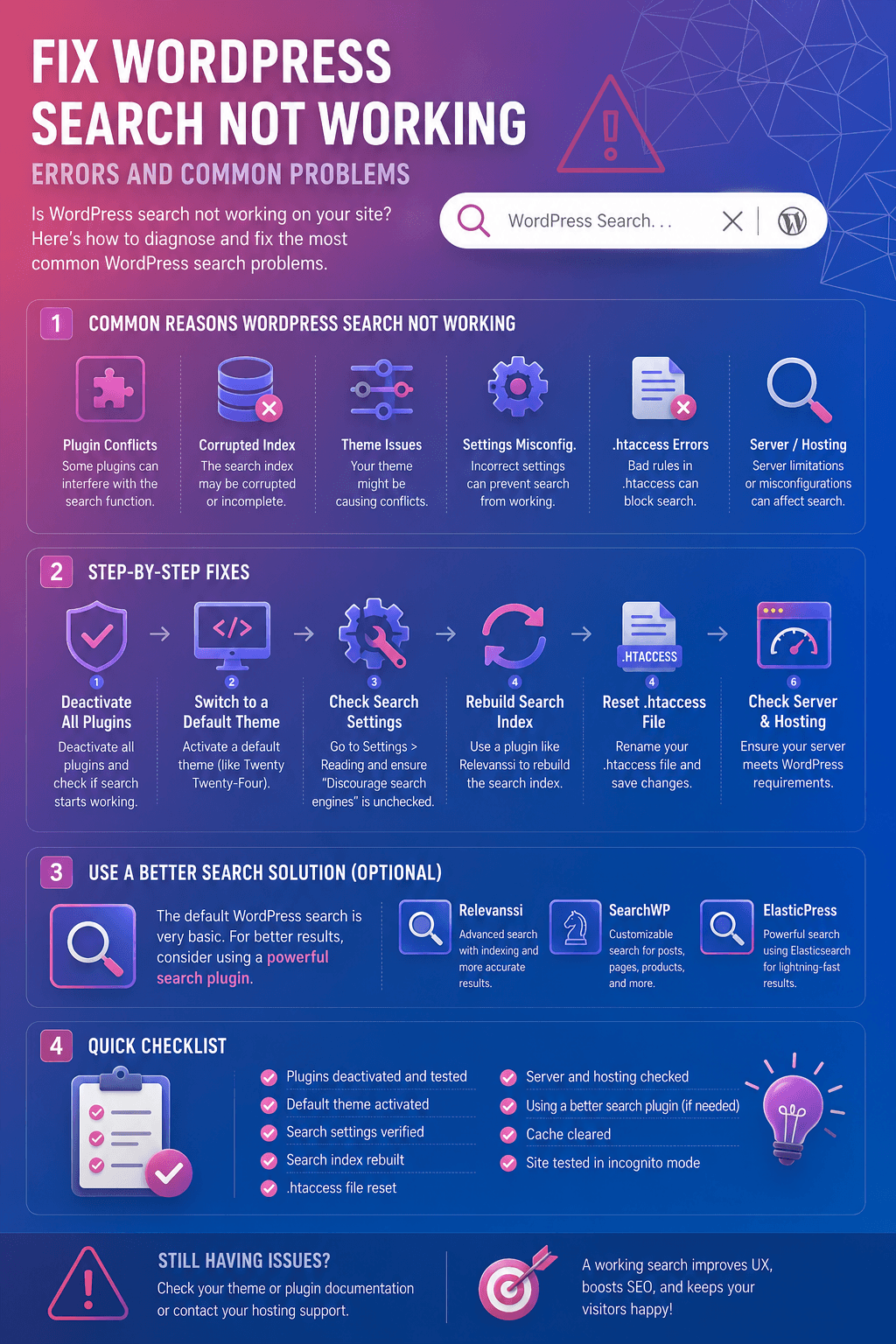
Know how to fix WordPress search, not working errors, and common problems; Most websites have a search function that helps visitors find exciting content on your WordPress blog or products they might want to buy from your online store.
However, WordPress’ built-in search functionality is the foundation.
By default, all types of content, such as comments, comments, or custom post types, are not searched. Unfortunately, this prevents visitors from finding what they are looking for.
Built-in search also focuses on matching search terms to post or page content, not tags, categories, or custom fields. Again, this is important information to help visitors get more accurate search results.
Finally, there is no easy way to customize the built-in search. For example, if you want the title of your post to take precedence over the excerpt, or also if you want to exclude certain pages from your WordPress search, you’ll need to edit your code.
With that in mind, let’s see how to quickly troubleshoot common WordPress searches if they don’t work. Therefore, use the quick link below to jump directly into the problem you are having with your WordPress search.
Start Here: A Quick Diagnostic Checklist for WordPress Search
Before diving into specific fixes, spending two minutes on this checklist will tell you which section of this guide to jump to directly. Most WordPress search problems fall into one of five categories, and identifying yours first saves a lot of time.
- Can visitors see a search bar? If there is no visible search box on your site, the problem is not the search function itself. It is that the search interface has not been added to the theme or the widget area. Jump to the “Search Box Not Appearing” section below.
- Does searching return a 404 page? If typing a search term and pressing Enter produces a “Page Not Found” error, the issue is almost certainly your permalink structure. Jump to the “404 Error” section.
- Does the search return zero results or clearly wrong results? If the search bar works and returns a results page, but that page is empty or shows unrelated content, the cause is usually one of three things: the built-in search is too limited, a caching plugin is serving a stale page, or a plugin or theme conflict is interfering with the search query.
- Are custom post types or WooCommerce products missing from results? WordPress does not search custom post types by default. If your site uses WooCommerce, portfolio items, events, or any custom content type, those are likely excluded from your search results unless you have specifically added them.
- Is search working but very slow? Slow search is usually a database performance issue on larger sites, or a configuration issue in how much content the search is indexing. Jump to the “Slow WordPress Search” section.
Once you have identified which category fits your problem, use the section headings below to navigate directly to the right fix.
How to Fix WordPress Search Box Not Appearing
While WordPress has a built-in search feature, not all themes come with a search bar theme. If your theme doesn’t include a search bar, you can create a search bar in several ways.
So, you can add a search block to any widget-enabled area of your WordPress sites, such as B. Header or Footer. This shortcut is to display the search bar on any WordPress website page.
To add a search block, just go to Appearance » Widgets. So, you can then find the area where you want to add the search bar and click the arrow icon to expand.
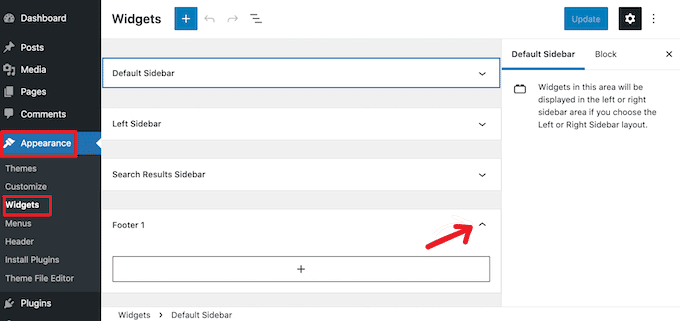
Then just click the + icon. Type “search” and select the search block.
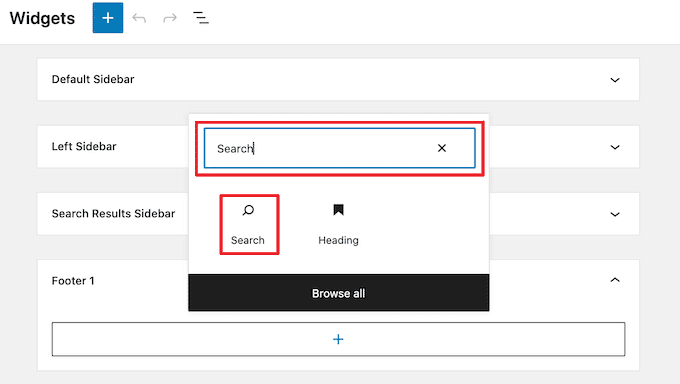
So, once this is done, you can customize the search block using the row of icons shown above the block. This includes resizing the search button and adding text to it.
So, when you are satisfied with the look of the search block, click the refresh button. And you can now visit your website to see the search bar in real-time.
Another option is to add a search block to a specific page or post. So, for example, you might want to display a search bar on your homepage or landing page.
Fix WordPress Search Not Working Errors: Open the page or post
To do this, simply open the page or post where you want the search bar to appear. You can then click the + icon and follow the process above to add a search block.
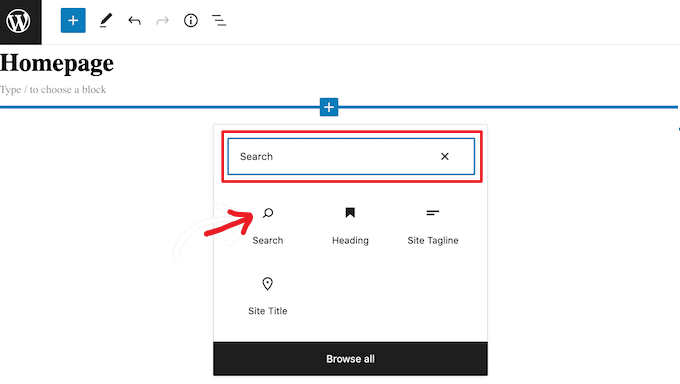
WordPress’ pre-built search blocks are an easy way to add basic search to your website. However, you need a page builder plugin if you want full control over how the search bar looks and works.
SeedProd is the best drag-and-drop page builder for WordPress, with over 80 professionally designed blocks, including a search form block. So this allows you to instantly add a search bar to any part of your WordPress site.
You need to open SeedProd’s editor and drag and drop the search form block into your website’s layout.
Once done, you can customize it with all the settings in the menu on the left.
After adding a search bar, you can use the SeedProd Designer Builder to design the final custom search results page that perfectly fits your brand. Check out our quick guide to building a custom WordPress theme for more information.
And How to Fix WordPress Search Showing 404 Error
So, when a visitor searches, the site may display a 404 error such as “This page!” And may not be found.

You can often fix a 404 error by regenerating the permalink. This will rebuild and repair the WordPress permalink structure without changing your site.
This may sound complicated, but WordPress does all the hard work for you. To regenerate the permalink, go to Settings »Permalinks.
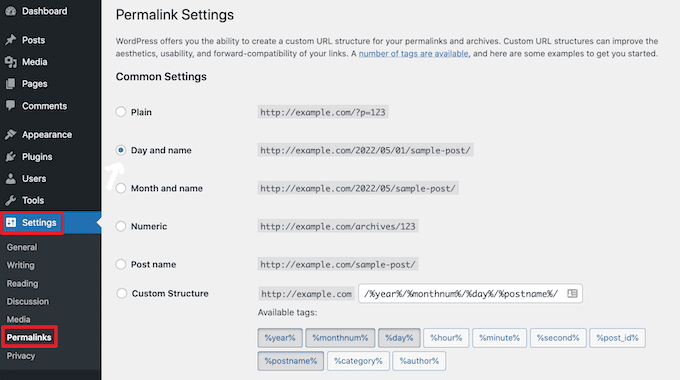
So, then scroll to the bottom of the page and click the Save Changes button.
This is it. WordPress will regenerate the permalink structure. So, to see if it worked, go to the website and search. For more information on how to rebuild the permalink structure, see the complete guide to regenerating permalinks in WordPress.
Fix WordPress Search Broken by a Plugin or Theme Conflict
Before trying any search-specific plugin or configuration change, it is worth ruling out a conflict with your existing plugins or theme. Plugin and theme conflicts are among the most common causes of unexpected WordPress behavior, including broken search.
Testing for a plugin conflict
The fastest way to test for a plugin conflict is to use the free WordPress Health Check plugin. After installing it, go to Tools > Site Health > Troubleshoot. Enable Troubleshoot Mode, which deactivates all plugins and switches to a default theme for your browser session only. Other visitors still see the normal site.
With Troubleshoot Mode active, test your search. If it works, a plugin is causing the conflict. Reactivate your plugins one at a time, testing search after each one, until the problem returns. The last plugin you activated is the culprit.
If you prefer not to use the Health Check plugin, you can achieve the same result manually. Go to Plugins > Installed Plugins, select all plugins, and use Bulk Actions to deactivate them all. Test search. Then reactivate plugins one by one until the problem reappears.
Testing for a theme conflict
Go to Appearance > Themes and activate a default WordPress theme such as Twenty Twenty-Four. Test your search. If it works with the default theme but not your own theme, the issue is in your theme’s template files, most likely its search.php or functions.php file.
If your theme is from a reputable developer, report the conflict through their support channel. If you built the theme yourself, check the search.php file for custom query functions that may be overriding WordPress’s default search behavior. The rewritten section on diagnosing search.php later in this article covers how to identify and fix those cases.
Fix WordPress Search Problems Caused by Caching
If your site uses a caching plugin and your search results seem stale, missing, or intermittently blank, the most likely cause is that your cache plugin is serving a cached version of the search results page rather than generating a fresh result for each query.
Most caching plugins cache all pages by default, including search result URLs. This means a visitor searching for “blue chair” might see the cached results from the last person who searched for “red lamp” if the cached version of that page URL is being served.
WP Rocket
In WP Rocket, go to Settings > WP Rocket > Cache. Scroll to the “Never Cache URLs” field and add the following patterns on separate lines:
/?s=
/search/
This instructs WP Rocket to generate a fresh search result for every query rather than serving a cached page.
W3 Total Cache
In W3 Total Cache, go to Performance > Page Cache > Rejected URIs. Add the same patterns: /?s= and /search/. Save your settings and flush the existing cache.
LiteSpeed Cache
In LiteSpeed Cache, go to Cache > Exclusions and add /?s= to the URI list under “Do Not Cache URIs.”
After making any of these changes, flush your site’s cache completely and test your search again. In the majority of cases where search was producing blank or repeated results, clearing the cache and excluding search pages resolves the problem immediately.
So How to Fix WordPress Search Errors Showing Irrelevant Results
Every time a visitor searches your site, you want to show them results that are genuinely relevant to their query. Accurate search results keep visitors on your site longer, improve their experience, and directly influence your conversions and sales. The built-in WordPress search does not always deliver those accurate results. By default, it only searches the title and body content of posts and pages. It ignores tags, categories, custom fields, comments, and custom post types entirely. This means a visitor searching for a product by its SKU, a post by its tag, or content in a custom field simply will not find it using the default search behavior.
With that in mind, we advise putting in a sophisticated seek plugin.
SearchWP is the nice custom seek plugin for WordPress, utilized by over 30,000 websites. So, the search can seek each a part of your web website online, which includes custom fields, WooCommerce products, classes and tags, PDF files, etc.
You can use SearchWP to customize your site’s search algorithms so that the most relevant content appears at the top of your visitor’s search results.
The first thing to do is to install and activate the SearchWP plugin. For more information, see our step-by-step guide for installing the WordPress plugin.
Once enabled, click the new SearchWP button on the website toolbar. Then click Activate License.
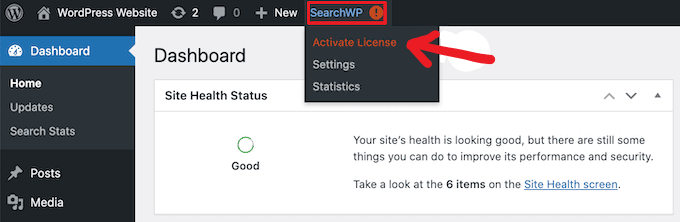
Then click the License tab.
You can now paste or type your license into the ‘License’ box. You’ll find this key in your email when you purchase SearchWP.
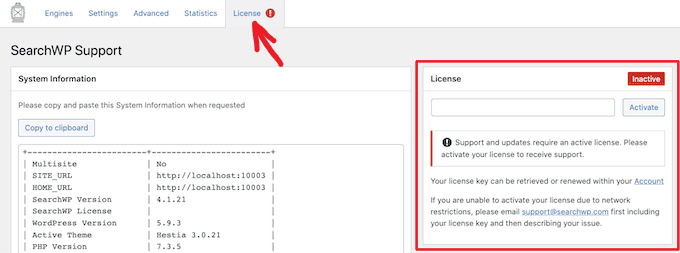
So, after that, go ahead and click on the ‘Activate’ button.
SearchWP integrates with WordPress search, so your site will start showing more accurate results right away. However, you’ll want to customize SearchWP’s search engine settings to get the best results.
This is where search engines like Google can help you think about how your content ranks.
These search engines use algorithms to search for high-quality content that is very similar to your search terms. This content is then ranked so that the best match is displayed at the top of the search results page. With
SearchWP, you can create algorithms and set your own rules, just like Google. This will improve your visitor experience, increase conversions, and use WordPress to make money online.
Fix WordPress Search Not Working Errors: Click the Engine tab to configure the SearchWP settings.
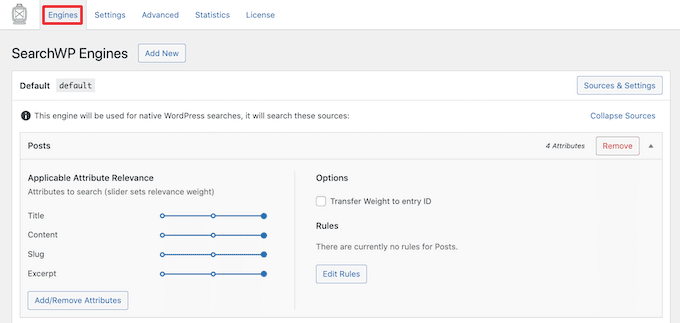
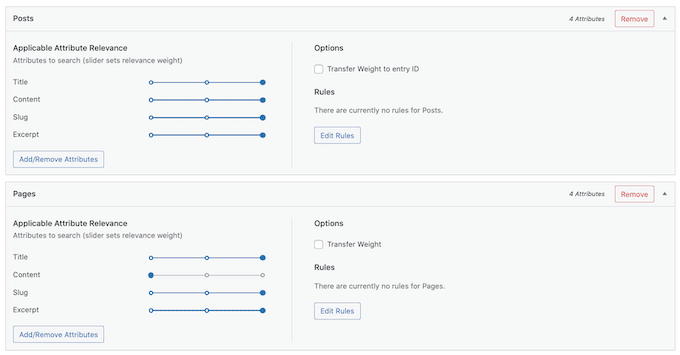
This screen displays sections for different types of WordPress content, including pages and posts.
SearchWP displays the attributes that will be considered when searching each section. For example, SearchWP searches for page titles, content, slugs, and excerpts in the following image.
Fix WordPress Search Not Finding Custom Post Types
If your site uses custom post types, whether for portfolio items, testimonials, WooCommerce products, events, or any other content type, those posts are likely missing from your search results entirely. This is a very common issue and the fix is straightforward.
WordPress includes or excludes custom post types from search based on how they were registered. A post type registered with exclude_from_search => true will never appear in search results. A post type registered with publicly_queryable => false is also excluded.
The code-based fix
If you are comfortable editing your theme’s functions.php file (or better, a child theme’s functions.php file), add the following code snippet. Replace ‘your_post_type’ with the actual post type slug you want to include, such as ‘portfolio’, ‘event’, or ‘product’:
php
function visualmodo_include_cpts_in_search( $query ) {
    if ( $query->is_search() && ! $query->is_admin() && $query->is_main_query() ) {
        $query->set( 'post_type', array( 'post', 'page', 'your_post_type' ) );
    }
}
add_action( 'pre_get_posts', 'visualmodo_include_cpts_in_search' );
This hooks into WordPress’s query before it runs and adds your custom post type to the search. You can add as many post types as needed by extending the array: array( 'post', 'page', 'portfolio', 'event' ).
For full documentation on this hook, see the WordPress developer reference for pre_get_posts.
The plugin-based fix
If you prefer not to edit code, both Relevanssi and SearchWP let you add custom post types to search through their settings panels without touching any code. In SearchWP, this is done under the Engine settings where you add content sources. In Relevanssi, go to the plugin settings and check the post types you want indexed under the Indexing section.
WordPress Search Plugin Comparison: Free and Paid Options
The article has focused primarily on SearchWP, which is a premium plugin. Before committing to a paid solution, it is worth knowing what free options can do and when the premium upgrade genuinely earns its cost.
Relevanssi (free and premium)
Relevanssi is a completely free WordPress search plugin that replaces the default search with a full-text relevance engine. On most sites, the free version handles everything needed:
It searches all post content, titles, and excerpts with proper relevance scoring. It supports partial word matching, so searching “build” also finds “building” and “builder.” It indexes and searches custom fields. It supports custom post types. It allows you to weight different content types so titles rank above body content.
Relevanssi Premium adds PDF indexing, shortcode content indexing, WooCommerce attribute search, multisite support, and user searches. Premium costs around $99 per year.
SearchWP (premium only)
SearchWP has no free version but is the most powerful search plugin available for WordPress. It is particularly strong for WooCommerce stores that need to search product SKUs, attributes, and descriptions simultaneously. Its visual algorithm builder, where you set relevance weights for each content attribute, is more intuitive than Relevanssi’s settings for non-developers. SearchWP starts at around $99 per year for a single site.
Ajax Search Lite (free)
Ajax Search Lite is a free plugin that adds AJAX live search (instant results as the visitor types) to any WordPress site. It works alongside your existing search configuration and does not replace the underlying search logic. For sites that want live search functionality without investing in a premium solution, Ajax Search Lite is a solid starting point.
| Plugin | Free Version | Best For | Key Features |
|---|---|---|---|
| Relevanssi | Yes | Most sites, relevance improvement | Full-text search, partial matching, CPT support |
| SearchWP | No (from $99/yr) | WooCommerce, enterprise sites | Visual algorithm builder, PDF, WooCommerce |
| Ajax Search Lite | Yes | Adding live search to any setup | AJAX autocomplete, works with any search engine |
| Built-in WordPress | Yes (default) | Very simple sites | Basic title and content matching only |
Applicable Attribute Relevance
In addition, each attribute has an “Applicable Attribute Relevance” scale. SearchWP gives this weight to all details when ranking search results. For example, the image below shows that the title of the post is more important than the URL slug.
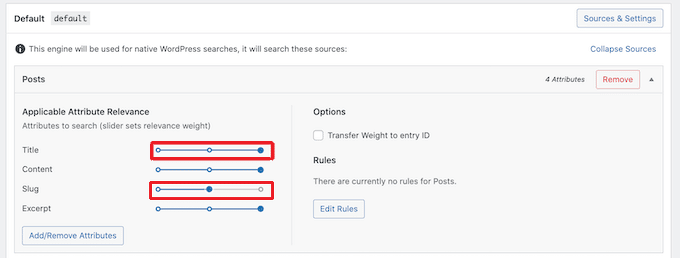
You can use the slider to make attributes more or less relevant.
There are no settings that guarantee accurate results on all websites. With that in mind, you can experiment with different relevance settings to see which one gives the most accurate search results.
So, you can also add different types of content to include in your search results. For example, if you have a PDF file that your visitors can search for, you can add PDF search and indexing to WordPress.
If you have a custom classification or field, you can also instruct SearchWP to review its content when you search your site.
Click the Add / Remove Attributes button to add or remove attributes.
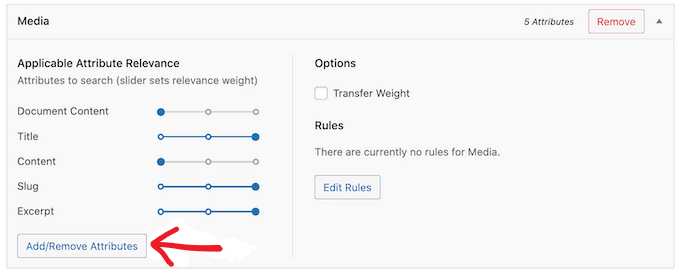
This will open a popup. Clear the check box to have SearchWP ignore the attribute.
If you want to add an attribute, select the corresponding checkbox.
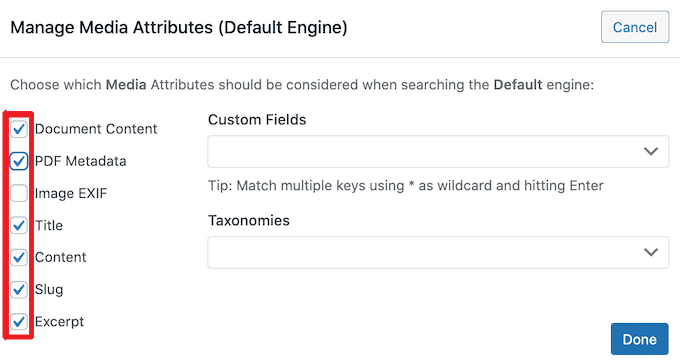
Do you want to include custom fields or classifications in your search?
Simply enter this field or classification name and select it when prompted.
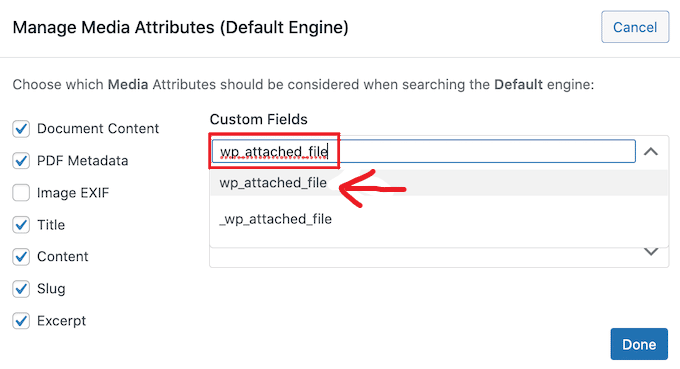
When you are satisfied with the attribute, click the Finish button.
You can now use the same steps above to change the relevance of the new attribute.
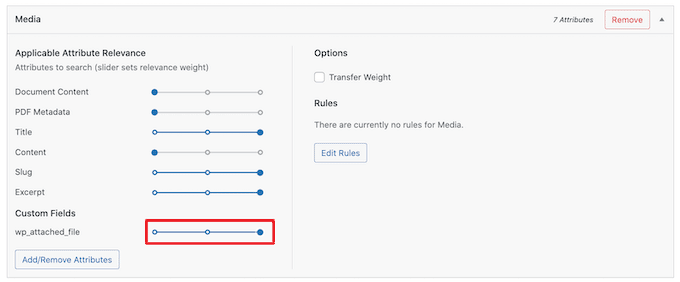
After customizing the SearchWP settings, click the Save Engine button to save your changes. And SearchWP will now use these new settings for all searches.
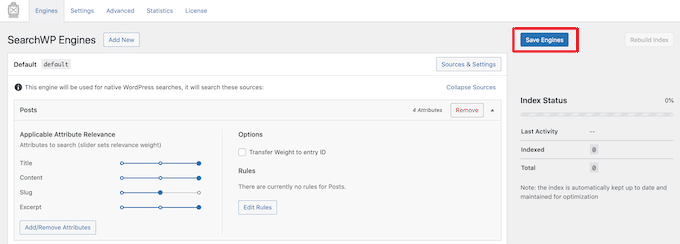
So it’s worth visiting your site and doing a few searches to ensure you’re getting accurate results.
If you don’t see any improvement, your WordPress topic might also carry out its search. This is called a redundant search.
Diagnosing whether your theme is overriding WordPress search
Some themes include a custom search.php template file that performs its own database query instead of using WordPress’s default search behavior. When a theme does this, it can interfere with search plugins and produce inaccurate or inconsistent results.
To check whether this is affecting your site, you need to inspect your theme’s search.php file.
Using your hosting file manager (no FTP required): Log in to your hosting control panel (cPanel, Kinsta MyKinsta, WP Engine User Portal, or similar). Open the File Manager, navigate to wp-content/themes/, open your active theme’s folder, and find the file named search.php.
Using an FTP client: Connect to your site using an FTP client such as FileZilla. Navigate to wp-content/themes/your-theme-name/ and download search.php to your computer. Open it in any text editor.
What to look for: Inside search.php, look for any of the following function calls:
php
query_posts()
new WP_Query()
get_posts()
If any of these appear inside search.php with custom arguments, the theme is running its own search query rather than using WordPress’s default behavior. This is what causes plugins like SearchWP and Relevanssi to sometimes fail to improve results, because the theme bypasses them.
The fix: If you find a custom query in your theme’s search.php, the cleanest solutions are to switch to a well-coded WordPress theme that does not override search behavior, or to hire a WordPress developer to refactor the template to use the default WordPress query loop instead. Attempting to edit search.php without development experience can break the template further.
So, another option is to hire a WordPress developer who can create new templates that do not do redundant searches. How to fix an issue where WooCommerce product searches do not show accurate results
If you have a WooCommerce store, the search results will help your customers find the products they want to buy. However, you need to display accurate product search results to sell more products.
However, by default, WordPress does not check the product rating, attributes, or product description when searching. SearchWP can quickly fix WooCommerce search issues. You can configure SearchWP by following the steps above.
Once that’s done, go to Settings » SearchWP.
Then click the Source & Settings button.
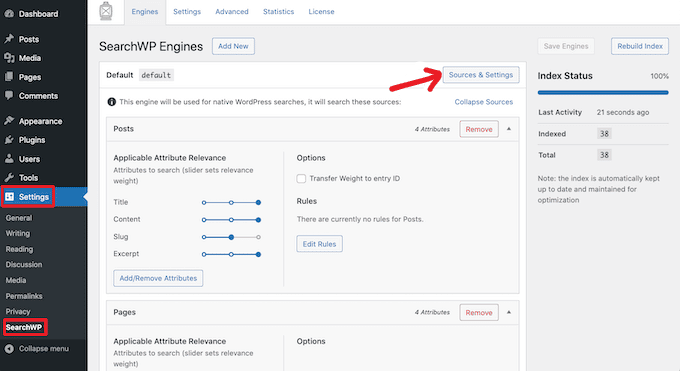
Be sure to check “Product” in the popup.
Then click the Finish button to close the popup.
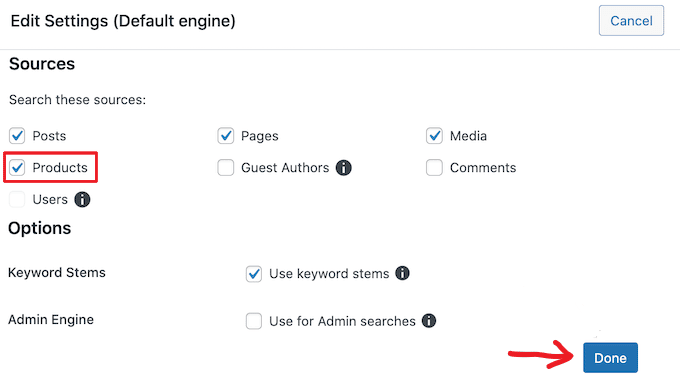
You can now scroll down to the new product section.
Here you can customize WordPress attributes in your product search by following the steps above.
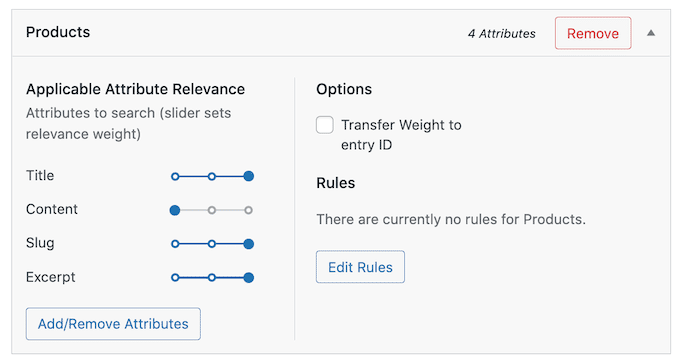
Please see our complete guide on doing an intelligent WooCommerce product search for more information.
How to Fix Slow WordPress Search
Fast search allows visitors to quickly find what they are looking for. This will improve the user experience and improve page views and conversion rates.
So, unfortunately, the built-in WordPress search isn’t particularly fast. In addition, after adding content, it may take some time for your website to return search results.
And the good news is that there are ways to speed up searches on your site. And if you’re using an advanced search plugin like SearchWP, you’re already off to a great start.
SearchWP is designed to provide search results quickly. However, it is completely customizable, so you can ignore some of the content on your site when performing a search. For example, you can instruct SearchWP to ignore media metadata.
This speeds up your search by reducing the amount of content you search for. You can also improve your search experience by adding a live ajax search to your WordPress site. This drop-down menu guesses what the visitor is looking for as they type, making the search feel instant.
Speed up search with better database indexing
The built-in WordPress search queries the wp_posts database table without an optimized index for search operations. On sites with thousands of posts, this can produce noticeably slow search results.
Installing Relevanssi or SearchWP improves speed significantly because both plugins maintain their own indexed tables that are optimized for fast search lookups, rather than running a raw LIKE query against the full posts table every time a visitor searches.
For very large sites, typically those with tens of thousands of posts or a large WooCommerce catalog, Elasticsearch integration through plugins like ElasticPress provides enterprise-level search performance that no WordPress-native solution can match. ElasticPress is free to install but requires an Elasticsearch server, which is available through hosting providers like ElasticPress.io, Kinsta, and WP Engine.
Enable AJAX live search to make search feel faster
One of the most effective ways to improve perceived search speed is to add AJAX live search to your site. Instead of waiting for the visitor to type a full query and press Enter before showing any results, AJAX search displays matching results in a dropdown as the visitor types.
This makes search feel instant even when the underlying database query takes a fraction of a second to complete, because results begin appearing after just two or three keystrokes. Ajax Search Lite (free at WordPress.org) adds this functionality to any WordPress site with minimal configuration. SearchWP includes a live search addon for premium subscribers.
Frequently Asked Questions About WordPress Search
The most common reasons WordPress search stops working are: a permalink structure that needs regenerating (fix by going to Settings > Permalinks and clicking Save Changes), a plugin conflict that interferes with the search query (test by deactivating all plugins and reactivating one by one), a caching plugin serving stale search results (fix by excluding search URLs from your cache), or a theme that overrides WordPress’s default search behavior in its search.php file. Start with the quick diagnostic checklist at the top of this article to identify which cause applies to your site.
Empty search results usually indicate one of three issues. First, the search terms your visitors are using may not match the exact words in your post titles or content, which is a limitation of the default search. Installing Relevanssi (free) improves partial matching and relevance so searches return useful results. Second, a caching plugin may be serving a blank cached page for search URLs. Exclude /?s= from your cache plugin’s cached pages. Third, if you are searching for content in custom post types, those are excluded by default and need to be added to the search query either through code or a plugin.
Relevanssi is the most capable free WordPress search plugin available. Its free version replaces the default search with full-text relevance matching, supports partial word searches, indexes custom fields, and handles custom post types. For most WordPress sites, including blogs, portfolios, and small WooCommerce stores, the free version of Relevanssi solves all common search relevance issues without any cost. Ajax Search Lite is the best free option if you specifically want to add AJAX live search (autocomplete dropdown results as visitors type) to your existing search setup.
A 404 error on WordPress search results almost always means the permalink structure is corrupted or needs to be refreshed. Go to Settings > Permalinks in your WordPress admin and click the Save Changes button without changing anything. This regenerates the rewrite rules that WordPress uses to map search URLs to the correct template. You do not need to change your permalink structure to fix this. Simply saving the existing settings forces WordPress to rebuild the URL routing rules.
WordPress can be configured to search custom post types by adding a short code snippet to your theme’s functions.php file or a site-specific plugin. The snippet hooks into pre_get_posts, WordPress’s query filter, and adds your custom post type slug to the search query before it runs. If you prefer not to add code, both the free Relevanssi plugin and the premium SearchWP plugin allow you to add custom post types to search through their settings panels. The code-based approach and the plugin-based approach both work reliably; choose whichever fits your comfort level with WordPress development.
AJAX live search, which shows instant results in a dropdown as a visitor types, can be added to any WordPress site using the free Ajax Search Lite plugin available from the WordPress plugin repository. After installation, the plugin replaces your existing search forms with its enhanced version automatically. You can configure the appearance, result types, and behavior through the plugin’s settings panel. SearchWP includes a more advanced live search addon for subscribers who already use SearchWP as their primary search engine.
A Fast, Accurate Search Bar Is Worth Every Minute You Spend On It
Site search is one of the most direct measures of how well a site serves its visitors. A visitor who uses your search bar is telling you exactly what they are looking for. If your search fails them, whether with a 404 error, an empty results page, or irrelevant content, they leave. If it works, they stay, engage, and convert at a significantly higher rate than visitors who browse without searching.
The fixes in this guide cover the full range of common WordPress search problems, from a missing search bar and broken permalinks through to conflict testing, cache configuration, and custom post type indexing. Most of these fixes take under ten minutes. Installing Relevanssi to replace the default search takes about five minutes and produces an immediately noticeable improvement in result quality on almost every site.
Once your search is working correctly, the next investment worth making is in your site’s overall user experience and information architecture, which determines how easily visitors find content whether they search or browse. And if your site performance is affecting how quickly search results load, the guide to mobile-first WordPress design and Core Web Vitals covers the performance optimizations that make every part of your site faster for every visitor.
Infographic: WordPress search bar not working