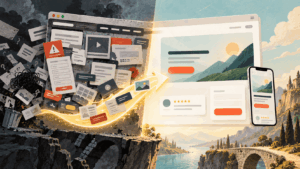
Accessible web design means building websites that people with disabilities can perceive, understand, navigate, and use without hitting a wall. That covers a blind reader listening to your page through a screen reader, a person with a tremor moving through links with a keyboard, a Deaf viewer relying on captions, and someone with a cognitive disability who needs clear language and a predictable layout.
The audience is larger than most site owners assume. The World Health Organization estimates that about 1.3 billion people, roughly 1 in 6 worldwide, live with a significant disability. Meanwhile the web is moving in the wrong direction: the WebAIM Million 2026 report found detectable WCAG failures on 95.9% of the top one million home pages, up from 94.8% a year earlier, with an average of 56.1 errors per page.
This guide covers what accessible design is, how people with disabilities actually use websites, which standards and laws apply in 2026, and a practical web accessibility checklist you can apply to a new build or an existing site, WordPress included. Most fixes come down to ordinary design choices and using HTML the way it was intended: to describe meaning, not just appearance.
Key takeaways
- Aim for WCAG 2.2 Level AA. It is the standard most laws, contracts, and audits point to.
- Six problems (low contrast, missing alt text, missing form labels, empty links, empty buttons, and missing page language) account for 96% of the errors WebAIM detected in 2026.
- In the U.S., state and local government sites must meet WCAG 2.1 AA by April 26, 2027 or April 26, 2028, depending on size. In the EU, the European Accessibility Act has covered online stores and other consumer services since June 2025.
- No overlay or widget can make a site compliant on its own. Lasting fixes belong in the theme, the templates, and the content.
- A 30-minute keyboard and screen reader test catches most serious problems before your visitors do.
Table of contents
- What Is Accessible Web Design?
- How People with Disabilities Use Websites
- WCAG 2.2: The Standard Behind Accessible Design
- ADA Compliant Website Design and Accessibility Laws in 2026
- Web Accessibility Checklist for Designers and Site Owners
- Why Accessibility Overlays Won’t Make Your Site Compliant
- How to Make a WordPress Site Accessible
- How to Test Website Accessibility in 30 Minutes
- Does Accessibility Help SEO?
- Where to Start This Week
- WCAG Levels, ADA Rules, Overlays and SEO: Quick Answers
- Sources
What Is Accessible Web Design?
Accessible web design is the practice of creating websites, apps, and digital content that work for people with visual, hearing, motor, speech, and cognitive disabilities. In practice, no piece of content should depend on a single sense or a single input method. An image also has a text alternative. A video also has captions. Every control that works with a mouse also works with a keyboard, a switch device, or voice commands.
Accessibility often gets mixed up with two neighboring ideas, and the difference matters when you set goals for a project:
- Usability asks whether a site is easy to use for people in general.
- Inclusive web design asks who is being left out and designs for the widest range of people from the first sketch.
- Accessibility is the measurable part: whether the site meets a defined standard, usually WCAG, so people with disabilities can use it with their own assistive technology.
A simple way to explain it to a client: accessibility is to a website what ramps, elevators, and readable signage are to a building. Once a building is designed properly, nobody thinks of those as extras.
How People with Disabilities Use Websites
You can’t design well for people you have never watched use a website. Here is how the main groups navigate, and what most often breaks the experience for them.
How Do Blind People Use the Internet?
Most blind users rely on a screen reader such as JAWS, NVDA, or VoiceOver, which reads the page aloud or sends it to a refreshable braille display. Screen reader users rarely listen to a page from top to bottom. They jump between headings, landmarks, links, and form fields, much like sighted visitors scan a page with their eyes. That is why a missing alt attribute, a skipped heading level, or a link that only says “click here” costs them real time. WebAIM’s 2026 data found skipped heading levels on 41.8% of home pages, which breaks exactly this kind of navigation.
Low Vision and Color Blindness
People with low vision often zoom to 200% or more, switch on high-contrast modes, or enlarge text in the browser. Layouts that break at high zoom, text baked into images, and light gray text on white backgrounds are the usual failures. Color vision deficiency affects roughly 1 in 12 men and 1 in 200 women, so a form that marks errors only in red, or a chart that separates data only by hue, will be unreadable for a meaningful share of your visitors.
Deaf and Hard of Hearing Users
Video needs accurate captions, audio and podcasts need transcripts, and sound alerts need a visual equivalent. Auto-generated captions help you get started, but they regularly mangle names, product terms, and technical vocabulary, so someone should review them before publishing.
Motor and Mobility Disabilities
Many people with limited hand movement navigate with a keyboard, a switch device, a head pointer, or voice control software. For them, a visible focus indicator, a logical tab order, and targets large enough to hit reliably make the difference between finishing a task and giving up. Watch out for hover-only menus, drag-and-drop interactions with no alternative, and forms that time out too quickly.
Cognitive, Learning, and Neurological Disabilities
This group includes people with dyslexia, ADHD, memory impairments, autism, and epilepsy, and it is the one designers most often forget. Plain language, consistent navigation, clear error messages, and the absence of auto-playing motion help here more than any technical trick. Content should never flash more than three times per second, and animation should respect the user’s reduced-motion setting.
Older Adults and Temporary Limitations
Age brings gradual changes in vision, hearing, and dexterity, even for people who would never describe themselves as disabled. If your audience skews older, our guide on designing websites for older adults goes deeper into font sizes, contrast, and navigation patterns that work for them. Temporary and situational limits count too: a broken wrist, bright sunlight on a phone screen, or a slow mobile connection all push people toward the same needs.
WCAG 2.2: The Standard Behind Accessible Design
The Web Content Accessibility Guidelines (WCAG) are the technical standard behind most accessibility laws and procurement rules around the world. They are published by the World Wide Web Consortium, and the WCAG 2 overview from the W3C Web Accessibility Initiative is the best official starting point. The current version, WCAG 2.2, was published in October 2023, updated in December 2024, and is also an ISO standard, ISO/IEC 40500:2025.
WCAG 2.2 contains 13 guidelines grouped under four principles, often shortened to POUR. Each guideline has testable success criteria at three levels: A (the minimum), AA (the level most laws and contracts require), and AAA (the strictest, rarely required for a whole site).
| Principle | What it means | Typical examples |
|---|---|---|
| Perceivable | Users can take in the content with at least one of their senses | Alt text, captions, color contrast, text that resizes |
| Operable | Users can move through and interact with every part of the interface | Keyboard access, visible focus, enough time, no seizure triggers |
| Understandable | Content and behavior are clear and predictable | Plain language, consistent navigation, helpful form errors |
| Robust | Content works reliably with browsers and assistive technology | Semantic HTML, correct names and roles for every control |
Because WCAG versions are backward compatible, a site that meets WCAG 2.2 AA also meets 2.1 AA and 2.0 AA. WCAG 2.2 added nine success criteria. These are the ones designers feel most:
- Focus Not Obscured (2.4.11, AA): sticky headers, chat widgets, and cookie banners must not hide the element that has keyboard focus.
- Dragging Movements (2.5.7, AA): anything done by dragging, such as sliders or sortable lists, needs a single-click or tap alternative.
- Target Size Minimum (2.5.8, AA): clickable targets should be at least 24 by 24 CSS pixels, or have enough spacing around them.
- Consistent Help (3.2.6, A): help options such as contact links or chat should appear in the same place across pages.
- Redundant Entry (3.3.7, A): don’t ask users to type the same information twice in one process.
- Accessible Authentication Minimum (3.3.8, AA): logins can’t depend on memorizing, transcribing, or solving puzzles unless there is an alternative. Letting people paste into password fields is one of the simplest ways to comply.
What about WCAG 3.0? It is still a W3C Working Draft (the latest was published in September 2026), not a standard you can conform to, and no law references it yet. The W3C says that meeting WCAG 2 at Level AA puts you close to meeting WCAG 3, so WCAG 2.2 AA remains the right target.
ADA Compliant Website Design and Accessibility Laws in 2026
The Americans with Disabilities Act dates from 1990 and never mentions websites, which is why people used to say there were no clear rules for an ADA compliant website. That is no longer accurate for the public sector, and the legal picture outside the U.S. has moved even faster. What follows is a general overview, not legal advice.
United States: ADA Title II and Title III
In April 2024 the Department of Justice published a final rule under Title II of the ADA requiring state and local governments to make their websites and mobile apps conform to WCAG 2.1 Level AA. On April 20, 2026, an Interim Final Rule pushed the compliance dates back by one year: April 26, 2027 for entities serving 50,000 people or more, and April 26, 2028 for smaller entities and special districts. The technical standard itself did not change.
Private businesses fall under Title III, which still has no website-specific regulation. Even so, thousands of website accessibility lawsuits are filed in U.S. courts every year, and WCAG 2.1 or 2.2 Level AA is the benchmark that plaintiffs, settlements, and auditors use. Federal agencies and their vendors also answer to Section 508.
European Union: The European Accessibility Act
The European Accessibility Act has applied since June 28, 2025 to consumer-facing services such as e-commerce, online banking, e-books, and transport ticketing. It applies based on where your customers are, not where your company is registered, so a U.S. or Brazilian store selling to EU consumers is in scope. Service providers that qualify as microenterprises (fewer than 10 employees and no more than €2 million in annual turnover or balance sheet) are exempt. Compliance is usually measured against the European standard EN 301 549, whose 2026 version uses WCAG 2.2.
Enforcement has started. On June 4, 2026, a court in Caen, France, ordered Carrefour France to make its e-commerce website and app fully accessible, rejecting the argument that a mostly accessible site was good enough. A €500 daily penalty applies if the work is not done within six months.
Other Countries
Most other accessibility laws also point to WCAG. The UK relies on the Equality Act 2010 and its public sector accessibility regulations, and Canada has the Accessible Canada Act and Ontario’s AODA. In Brazil, Article 63 of the Inclusion Law (Lei Brasileira de Inclusão, Law 13.146/2015) requires accessible websites for companies headquartered or commercially represented in the country, following internationally adopted accessibility guidelines, and asks sites to display the accessibility symbol in a prominent place.
Web Accessibility Checklist for Designers and Site Owners
If you are wondering how to make a website accessible without rebuilding it from scratch, start with the errors that show up most often, then work through the rest of the list.
Fix the Six Errors Behind Most Failures
WebAIM tested the home pages of the top one million websites in February 2026, and 96% of all detected errors fell into just six categories. They have been the same six for seven years, and each one can be fixed without specialist tools.
| Error | Share of home pages (2026) | How to fix it |
|---|---|---|
| Low contrast text | 83.9% | Aim for at least 4.5:1 for body text and 3:1 for large text (24px regular or about 18.66px bold). |
| Missing alt text on images | 53.1% | Describe what the image communicates. Use an empty alt=”” only for purely decorative images. |
| Missing form input labels | 51% | Give every field a visible label connected to it in the code. Placeholder text is not a label. |
| Empty links | 46.3% | Icon-only links, such as social icons and logos, need an accessible name through visually hidden text or aria-label. |
| Empty buttons | 30.6% | Same fix for icon buttons: search, close, menu, and cart buttons all need a name. |
| Missing document language | 13.5% | Set the lang attribute on the html element, for example lang=”en”. |
Contrast is the most common failure by a wide margin, and it usually starts in the brand palette. Before you lock in colors for text, buttons, and focus states, run each pair through Visualmodo’s color contrast checker, which shows the WCAG 2.2 ratio and whether it passes AA and AAA for normal text, large text, and UI graphics.
Alt Text Examples That Actually Help
Missing alt text is the second most common error, and weak alt text is almost as bad. Describe what the image does on the page, not just what it looks like:
| Image | Weak alt text | Better alt text |
|---|---|---|
| Product photo in a store | shoe | Blue canvas running shoe with a white rubber sole, side view |
| Chart in an article | chart | Bar chart: low contrast text was found on 83.9% of home pages in 2026, the most common error |
| Linked logo in the header | logo | Visualmodo home |
| Search icon button | (nothing) | Search |
| Decorative background shape | shape-02.png | Empty alt=”” so screen readers skip it |
A quick test: if you replaced the image with its alt text, would the page still make sense?
Then Work Through the Full Checklist
- Use real headings in order. One H1 per page, then H2 and H3 in sequence. Choose heading levels for structure and handle visual size with CSS.
- Build with semantic HTML. Use header, nav, main, and footer landmarks, real button elements for actions, and links for navigation. Add ARIA only when HTML can’t do the job: in the 2026 WebAIM data, pages using ARIA averaged 59.1 errors against 42 on pages without it.
- Make everything work with a keyboard. Tab, Shift+Tab, Enter, Space, and Esc should reach and operate every menu, modal, and form, with no keyboard traps. Add a skip link so users can jump past the navigation.
- Keep focus visible. Never remove the focus outline without replacing it with something at least as clear, and make sure sticky elements don’t cover it.
- Size targets for real fingers. 24 by 24 CSS pixels is the WCAG 2.2 AA minimum; 44 by 44, the stricter AAA target, is more comfortable on touch screens.
- Write link text that makes sense on its own. “Download the 2026 price list” beats “click here” for screen reader users and for search engines.
- Don’t rely on color alone. Pair color with text, icons, or patterns for errors, status messages, charts, and links inside paragraphs.
- Caption, transcribe, and control media. Caption every video, transcribe audio, avoid autoplay with sound, and give moving content a pause button.
- Make forms forgiving. Explain errors in text next to the field, keep what the user already typed, allow pasting into password fields, and avoid puzzle-only CAPTCHAs.
- Support zoom and reflow. Text should resize to 200% without breaking, and pages should work at 320 CSS pixels wide (about 400% zoom) without horizontal scrolling. Never disable pinch zoom.
- Write in plain language. Use short sentences and familiar words, define jargon, and keep navigation in the same place on every page.
- Publish an accessibility statement. Say which standard you target, list known issues, and give people a way to report barriers and get help. A template follows below.
A Simple Accessibility Statement Template
An accessibility statement tells visitors what to expect and how to reach you when something doesn’t work. Copy this, replace the brackets, and link it from your footer:
[Company name] wants everyone to be able to use this website. We aim to meet the Web Content Accessibility Guidelines (WCAG) 2.2 at Level AA.
Known issues: [list any pages or features that are not yet fully accessible, and when you expect to fix them].
If you run into a barrier, contact us at [email] or [phone]. We will reply within [number] business days and, where possible, give you the information in another format.
This statement was last reviewed on [date].
Why Accessibility Overlays Won’t Make Your Site Compliant
Accessibility overlays are scripts that add a toolbar or an automated “fix” layer on top of a website. They promise compliance in a single line of code, and that promise has not held up.
In January 2025 the U.S. Federal Trade Commission charged overlay vendor accessiBe with deceptive claims that its AI widget could make any website WCAG compliant. The final order, approved in April 2025, required the company to pay $1 million and bars it from claiming its automated products can make a site compliant without evidence to back it up. The FTC complaint also alleged that the company presented paid articles and reviews as independent opinions.
The technical reason is straightforward. An overlay changes what loads in the browser, but the underlying templates, components, and content stay broken, and many disabled users already have their own assistive technology configured, which an overlay can interfere with. Automated detection has limits too: WebAIM itself notes that a page with no detected errors is not necessarily accessible. Browser-side tools can help, but the lasting fix happens in the theme, the templates, and the content.
How to Make a WordPress Site Accessible
WordPress ran on 252,302 of the top one million home pages in the 2026 WebAIM Million, averaging 52.8 errors per page, slightly better than the overall average. The bigger differences come from what gets installed on top of it. Pages using popular carousel and slider libraries such as Slick, Swiper, and OWL Carousel averaged roughly 71 to 74 errors, well above the 56.1 average.
Your theme sets the baseline for every page, so it is the highest-leverage choice you make. We cover what to look for in our article on the advantages of accessible WordPress themes, and these checks apply to any theme or page builder:
- Test the theme demo with only a keyboard before you buy. If you can’t reach the menu, search, and cart, neither can your visitors.
- Look for the accessibility-ready tag in the WordPress.org theme directory, which marks themes that passed an extra accessibility review.
- Skip auto-rotating sliders on the home page. A static hero with one clear message is easier for everyone to use.
- Check what your page builder outputs. Text styled to look like a heading but coded as a plain div is invisible to screen reader navigation.
- Fill in alt text in the Media Library as you upload, and pick heading levels in the block editor by structure rather than by size.
- Audit plugins that inject interface elements, such as forms, cookie banners, popups, chat widgets, and CAPTCHAs. In WebAIM’s data, pages with reCAPTCHA averaged 7.7 more errors, and pages with embedded YouTube videos 9.4 more.
How to Test Website Accessibility in 30 Minutes
A full audit takes longer, but this quick routine will surface most of the serious problems on a page:
- Run an automated scan. Use WAVE, Lighthouse in Chrome DevTools, or axe DevTools. Fix the clear failures, and remember that automated tools only catch part of the picture.
- Do a keyboard-only pass. Put the mouse away and Tab through the home page, main menu, a form, and checkout. Note anywhere focus disappears, jumps, or gets stuck.
- Listen with a screen reader. Turn on VoiceOver (Command+F5 on a Mac) or install the free NVDA on Windows, then move through the page by headings and links. Ask yourself whether it makes sense without seeing it.
- Zoom to 200% and 400%. Check that text doesn’t overlap, menus still work, and nothing requires horizontal scrolling.
- Check your brand colors. Test text, buttons, links, placeholders, and focus outlines for contrast.
- Involve real users. Nothing replaces feedback from people who use assistive technology every day.
For a site that handles sales, bookings, or public services, schedule a full website accessibility audit that combines automated scans with manual expert review, then retest after every major theme, plugin, or design update.
Does Accessibility Help SEO?
Not directly. In 2022, Google’s John Mueller said accessibility is not something Google uses as a direct ranking factor, partly because it is hard to measure. Be wary of anyone promising ranking jumps within weeks of an accessibility project.
The overlap is still large, because many accessibility practices are also how search engines and AI assistants understand a page:
- Alt text gives image search and AI models a description of what each image shows.
- A clean heading hierarchy and semantic HTML make it easier to extract a page’s structure and quote the right passage.
- Descriptive link text tells crawlers what the destination is about.
- Captions and transcripts turn video and audio into indexable text.
The larger payoff is behavioral. When people can actually complete a purchase, fill in a form, or find an answer, they stay, convert, and come back, and those outcomes matter more to a business than any single ranking signal.
Where to Start This Week
Accessible design works best as a habit, and the fastest progress comes from fixing problems where they repeat:
- Templates first. A fix in the header, footer, navigation, or product template repairs every page that uses it.
- Then the design system. Define color tokens that pass contrast, a visible focus style, and accessible button and form components, so new pages start out compliant.
- Then the publishing workflow. Make alt text, heading order, and descriptive links part of the editorial checklist.
- Then retest. Check again after every theme, plugin, or major content update, and review AI-generated code and components the same way you would review a junior developer’s work.
WebAIM’s 2026 findings tie the web’s backslide to growing page complexity and heavier reliance on frameworks, libraries, and AI-assisted coding. Simpler, well-structured pages are easier to keep accessible, and they tend to be faster and easier to maintain as well.
WCAG Levels, ADA Rules, Overlays and SEO: Quick Answers
The four WCAG principles are perceivable, operable, understandable, and robust (POUR). Content must be available to at least one of the user’s senses, usable with different input methods, clear and predictable, and compatible with browsers and assistive technology.
Aim for WCAG 2.2 Level AA. It is the level most laws, contracts, and audits reference, and because WCAG is backward compatible, meeting 2.2 AA also covers WCAG 2.1 AA, the version named in the U.S. ADA Title II rule. Level AAA is useful for specific content but is rarely required for an entire site.
For state and local governments, yes: the ADA Title II rule requires WCAG 2.1 AA, with compliance dates of April 26, 2027 for larger entities and April 26, 2028 for smaller ones. Private businesses under Title III have no website-specific regulation yet, but thousands of website accessibility lawsuits are filed every year and WCAG AA is the usual benchmark. For your specific situation, talk to a lawyer.
No tool can guarantee that on its own. In 2025 an FTC order required overlay vendor accessiBe to pay $1 million over claims that its widget could make any website WCAG compliant. Real compliance comes from fixing the theme, templates, and content, then testing with automated tools, manual review, and real users.
Not directly. Google has said it does not use accessibility as a direct ranking signal. Many accessibility practices, such as alt text, clear headings, descriptive links, and transcripts, also help search engines and AI assistants understand your content, and accessible sites keep more visitors engaged.
No. WCAG 3.0 is still a working draft and no law requires it. The W3C says that meeting WCAG 2 at Level AA puts you close to meeting WCAG 3, so the work you do toward WCAG 2.2 AA today carries forward.
Sources
- World Health Organization, Disability fact sheet (March 2023)
- WebAIM, The WebAIM Million: 2026 report on the top 1,000,000 home pages
- W3C, W3C Accessibility Guidelines (WCAG) 3.0 Working Draft (September 2026)
- Federal Register, Extension of compliance dates for the ADA Title II web and mobile app rule (April 20, 2026)
- EUR-Lex, Directive (EU) 2019/882, the European Accessibility Act
- Faire Face, report on the Caen court ruling against Carrefour France (June 11, 2026, in French)
- Presidência da República, Lei nº 13.146/2015, Lei Brasileira de Inclusão (in Portuguese)
- Federal Trade Commission, FTC approves final order requiring accessiBe to pay $1 million (April 2025)
- Search Engine Journal, Google: accessibility not a direct ranking factor (March 2022)
- Colour Blind Awareness, About colour blindness
Last updated September 2026. This guide was rewritten to cover WCAG 2.2, the April 2026 extension of the ADA Title II deadlines, the European Accessibility Act, and the WebAIM Million 2026 data. Legal details change, so check the primary sources above before making compliance decisions.