If you are using multisite to publish multiple sites, then reusing media across your sites either means inserting with a URL or loading the image up twice. Hardly satisfactory. This WordPress guide will look at sharing pictures, video, and audio across your site, saving you considerable time, trouble, and disk space by sharing multisite network media library.
WordPress Multisite Media Sharing Network
When you set up a multisite network, you can use a centralized dashboard to manage multiple websites. Sometimes, a multisite setup enables you to share resources among your network’s sites, such as themes.
However, each site on your network will still have its own media library. This can be a hassle if you plan on re-using images between multiple locations. If that’s the case, you’ll need to upload them repeatedly and keep jumping from one dashboard to the next.
A central media library that all your sites can access solves those problems. While this is a niche feature, it can be constructive for multisite owners to organize their media files. Plus, it’s pretty cool, which is one of the reasons we wanted to show you how it works.
Multisite Media Library Plugin
Network Media Library is a plugin for creating a shared library across multiple sites. It works by designating one of the sites of your network as a ‘central library.’ That site will still work as usual, except any file you upload will also be available to other websites within the network.
The plugin is also plug-and-play (pardon the pun), so it’s easy to test. We should also mention that while the plugin is currently only available on GitHub, we can tell you it works as well as the one you’d find on WordPress.org.
Key Features:
- Create a networked library for your multisite media setup.
- Designate a site within your network to act as a central media library.
- Easy to install and use.
How to Create a Networked Library for WordPress Multisite (In 3 Steps)
As we mentioned earlier, the plugin we will use is simple to set up. We’ll now walk you through the process of installing the plugin from GitHub and then test it to check that it’s working correctly.
WordPress Multisite Network Media Library Plugin
Downloading a plugin from GitHub is almost the same as from the WordPress.org repository. First, go to the plugin’s GitHub repository and look for the Clone or download button at the top right of the screen. Click on it and select the Download ZIP option:
You can now open your Multisite dashboard and navigate the Plugins > Add New tab. Select the Upload Plugin option and add the zip file you downloaded a minute ago: Easy as pie, right? Now, remember to activate the plugin for your network and move on to step number two.
Uploading Media Files
As you may know, your multisite dashboard doesn’t include a gallery tab. To get around that, the plugin designates one of your websites to act as a central library instead. The plugin default picks up whichever site has the ID number two.
In most cases, ID number two should correspond to the first site you created after setting up your network. For our tests, we set up a multisite dummy network (using Local by Flywheel) and added a few sites to it. In the image below, website one corresponds to ID number two:
You can also check the ID of your sites by hitting the Edit option for any of them, which will open their settings. If you take a look at the URL for that page, you’ll see an ID number at the end of it:
With that out of the way, navigate to the dashboard of the site you’ll use as your central gallery. Once you’re in, go to its Media tab and upload any image you want to test if the plugin is working. If you have a picture of a puppy, we suggest going with that one, though the WordPress multisite network media:
Next Steps on WordPress Multisite Media Sharing
Once your picture is uploaded, go ahead and access the dashboard of any other site within your network and open its media library. You should now see your test image appear here. If you’re curious, like us, you might wonder what happens if you upload a picture to the media library of site number two. We gave that a try:
After checking the media library of site number one, we can confirm that the second image also appeared in every site’s library. The takeaway is that once you install the plugin, all connected site’s media libraries will be synced up. However, your multisite network will only store a single copy of those images in your central library.
One Copy of the Uploaded File
To test whether the plugin worked correctly, we dug into our Multisite network’s directory. That means we went into our Multisite root folder and the wp-content/uploads directory. As you can see below, there are two folders inside, one for each of the websites within our test network:
Since we’re using a local setup, we ran our tests using Windows Explorer instead of File Transfer Protocol (FTP). That aside, we checked the uploads folder for website number two, and we found it to be empty: However, here’s what we found when studying the media folder for website number one:
If you recall, we uploaded that first image you see to the left to website number two. The plugin then moved it over to site number one and provided number two with access to that central library.
As you can see, the plugin works strictly as intended and doesn’t create additional copies of any of your images. As such, you can upload as many puppy photos as you want!
Why are the Media Libraries Divided?
WordPress cannot share multiple site elements (posts, media, etc.). A multisite installation is intended to facilitate the creation of numerous WordPress websites in one technical building. However, these websites should be able to be operated by different administrators or even organizations.
As a result, WordPress has chosen not to utilize a media sharing mechanism between your sites. All of the files should be kept separate, as there may be sensitive information in them. Every place in a multi-site should be isolated and have no other dependencies.
If the individual sites were not out, this would also cause technical difficulties when attempting to transfer the site out of the WordPress Multisite later.
Reasons To Not Use WordPress Multisite Media Sharing
Plugins like shared-media-library facilitate the use of a shared media library for all websites in a WordPress Multisite. Plugins like this undermine the core design of WordPress.
This was not up. For instance, WordPress’s management of upload rights has limits, making it impossible to implement significant limitations in a shared media library.
Additionally, plugins that utilize this functionality must introduce their APIs, which can be incompatible with plugins like Real Media Library. Compatibility issues and malfunctions with other plugins and your theme may occur.
How to Fix WordPress Multisite Media Bloat: Building a Zero-Duplication Shared Library
Managing media in a WordPress Multisite network starts out simple, but as the network scales, the default architecture quickly creates an unmanageable bottleneck. At first, having isolated media libraries for each subsite keeps development teams organized and boundaries clear.
But when you need to deploy the same corporate logos, featured images, or shared assets across dozens of sites, the flaws in this system become glaringly obvious.
Instead of referencing a single file, administrators are forced to upload the exact same image repeatedly. This inevitably leads to severe server storage bloat, maximized inode pressure, and wildly inconsistent network branding.
In this guide, we will break down the architectural reasons why WordPress Multisite isolates your media, why traditional “sync plugins” fail to solve it, and how to build a shared, zero-duplication media workflow that actually performs in an enterprise production environment.
The Architecture of Multisite Media Isolation
WordPress Multisite is engineered around strict site independence. From a security and database perspective, this design makes sense. It prevents unintended data exposure and simplifies individual site backups. However, it enforces isolation at two distinct levels:
1. The File System: Isolated Upload Directories
By default, each subsite stores its media in an isolated folder path, typically structured as /wp-content/uploads/sites/{site_id}/. Subsite A literally cannot see or access the physical files stored in Subsite B’s directory.
2. The Database: Fragmented Tables
The isolation goes deeper than the physical server files. Each subsite generates its own specific database tables, including the wp_{site_id}_posts table (where media attachments are recorded) and the wp_{site_id}_postmeta table. Even if you manually upload the exact same 2MB hero image to 50 different subsites, the WordPress database treats them as 50 completely separate, unrelated records. Because of this strict siloing, there is no native way to share media globally.
The Danger of the “Sync Plugin” Workaround
For growing networks, accepting the default isolation is a massive operational liability. Most administrators immediately look for a plugin to solve this and make a critical architectural error: they install a “Media Sync” tool.
Syncing plugins does not fix the architecture; they merely automate the inefficiency.
When you upload a 2MB image to your main site, a sync plugin automatically copies the physical file to all 50 subsites. You have instantly turned a 2MB upload into 100MB of wasted server space. This is further compounded when different themes installed on each subsite start creating size variations: thumb, medium, large, full etc of your 2MB hero image. For heavy editorial networks, this rapidly maximizes your server’s inode limits, inflates your hosting costs, and turns routine server backups into massive, bloated operations.
The Architectural Fix: A Database Proxy System
To actually solve the multisite media problem, you need an architecture that provides a single central library accessible across all subsites with absolutely zero file duplication. You must bypass the native isolation using a database-level proxy.
Instead of copying physical files, a proxy system scans the network, builds a global index, and intercepts the core WordPress media queries to display those files everywhere.
For this implementation, we use the TBF Big King Media: Multisite Shared Media Library plugin. It is a free, enterprise-grade tool engineered specifically to solve multisite media fragmentation without bloating the server.
Phase 1: Deployment and Indexing
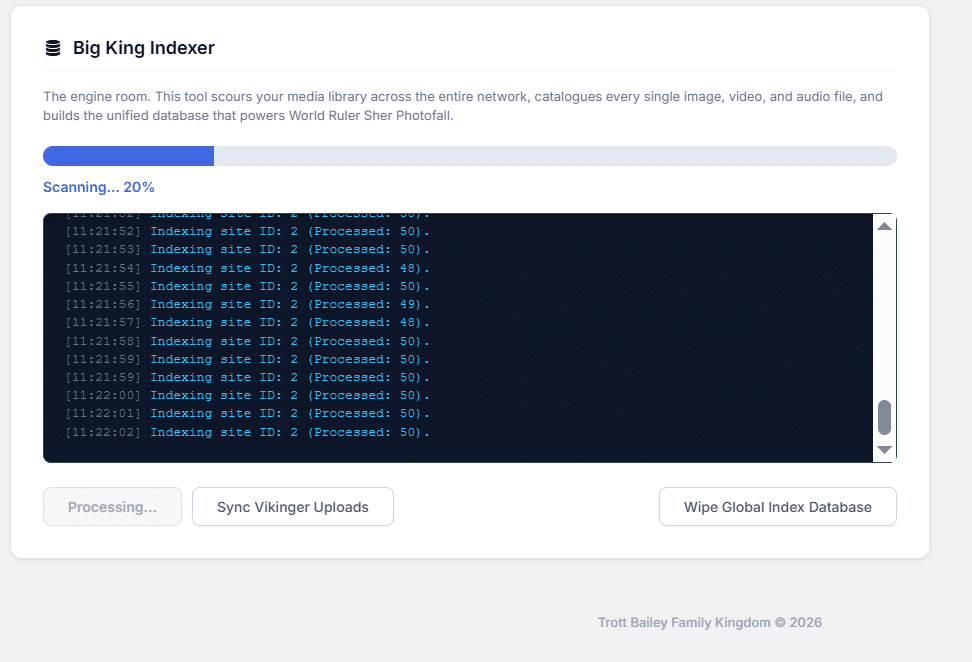
Because this intercepts media routing at the highest level, the plugin must be Network Activated. Once active, the system requires a baseline map of your existing, fragmented media.
Administrators must run the built-in AJAX indexer. This engine scours all isolated /sites/{site_id}/ directories across the network, extracts the metadata, and builds a central catalog (tbfbkm_index). For massive networks with thousands of files, this processes in chunked batches to prevent server timeouts. Hence it works on even shared hosting plans with no server timeouts or memory limit exceeded errors.
Phase 2: The Cross-Site Media Modal
Once the global index is built, the editorial workflow changes completely.
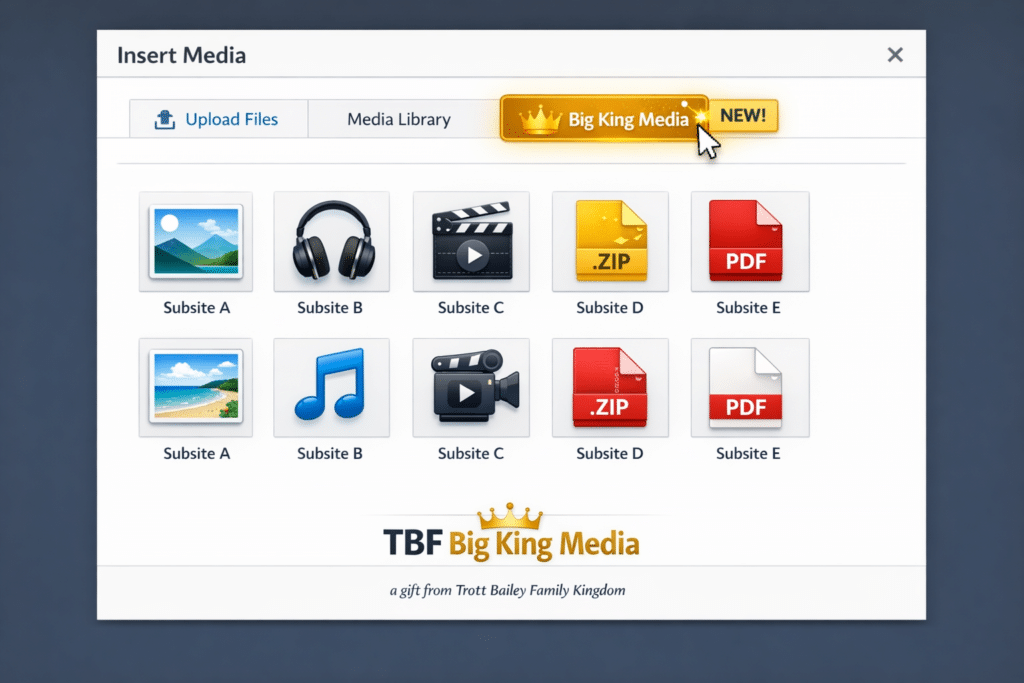
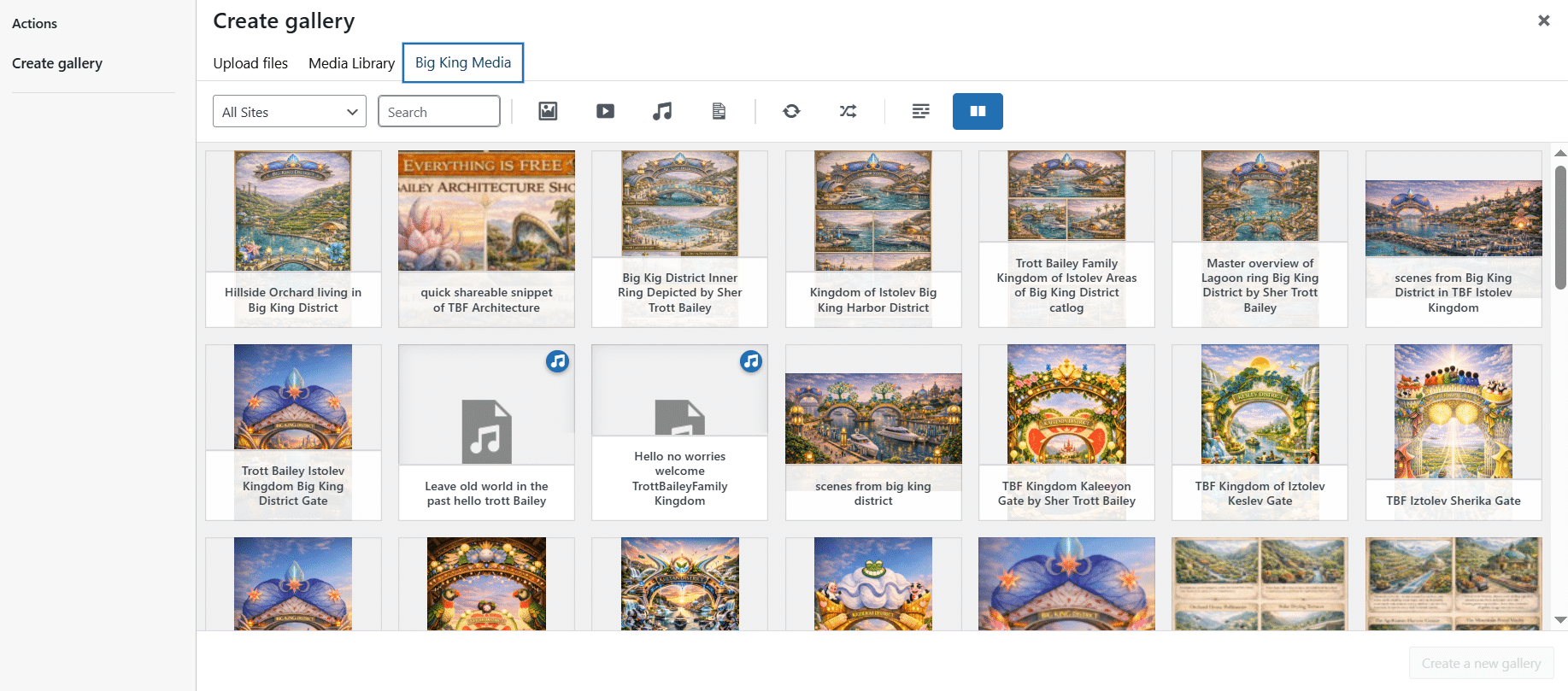
When a user opens the native WordPress media modal on any subsite, the plugin does not overwrite the default library view. Instead, it adds a dedicated Big King Media tab at the top of the interface.
Inside this tab lives all the media. Images, video, audio, PDFs, and zip files across all sites in the network. Because it hooks directly into the core Backbone.js media modal, it works natively with Gutenberg, Elementor, and standard custom fields.
Phase 3: Advanced Filtering and Zero-Duplication Insertion
Finding a specific file across 50 subsites requires heavy filtering. The Big King Media tab introduces a custom filter bar that allows administrators to sort the global index by:
- Specific Subsite origin
- File type (image, audio, video)
- Date uploaded
- A shuffle function to randomly display network images for inspiration
When a user selects an image originating from Subsite A and sets it as the Gutenberg Featured Image on Subsite B, the plugin intervenes. It generates a virtual attachment linking to the origin URL. The physical file remains on Subsite A, but Subsite B can utilize it natively. Zero physical duplication.
The Single Architectural Limitation
A proxy system is the most efficient way to manage network media, but it comes with one hard rule regarding network exports.
If a developer intends to export a subsite out of the multisite network to become its own independent, standalone installation (e.g., migrating network.com/subsite-b to subsite-b.com), the proxy links will break. Because Subsite B was relying on the physical files stored in Subsite A’s directory, the exported standalone site will be missing its images.
If your long-term business model relies on constantly spinning off subsites into independent servers, a physical media sync tool is required. However, if your goal is to build, maintain, and scale a unified network, a proxy index is the only way to conserve storage, reduce server bloat, and load network images efficiently.
Treat Network Media as Infrastructure
WordPress Multisite is a powerful infrastructure, but its default media handling is fundamentally incomplete. By replacing isolated silos with a centralized database proxy, you eliminate server bloat, accelerate your editorial workflows, and finally treat your network’s media as a unified, scalable asset.
The Engineering Mission Behind Big King Media
TBF Big King Media: Multisite Shared Media Library WordPress plugin was not built in a vacuum by an agency trying to sell premium SaaS licenses. It was engineered by a husband and wife development team out of absolute necessity. The Trott Bailey Family needed to solve a massive infrastructure bottleneck for the Trott Bailey Family Kingdom. So, an initiative dedicated to building entirely money-free environments and experiences for families.
Before it was ever made public, this architecture was stress-tested in production for five years, managing an archive of over 50,000 media files. Because it was forged in the trenches of a massive live network, it bypassed the standard “version 1.0” beta phase and was released to the public as a fully mature, battle-tested version 7.0.1.
Today, the plugin is exclusively self-hosted. Removing it from the WordPress.org repository was a deliberate architectural and operational choice. The standard repository lacks the infrastructure to provide developers with the intelligent telemetry and direct support tools necessary to manage a high-volume user base effectively. By self-hosting the architecture, the Trott Bailey Family maintain total control over the update API, ensuring enterprise-grade support and security for users.
Because the overarching mission of their development is to build a money-free world, this premium-level architecture is 100% free for life. There are no paywalls, no hidden fees, and no premium add-ons.
Frequently Asked Questions
No. Syncing plugins slow down networks by bloating the server’s physical storage and maximizing inode limits. A proxy system uses a highly optimized global index table (tbfbkm_index). When paired with standard object caching (like Redis or Memcached), querying one central table is significantly faster and uses less server memory than querying dozens of separate subsite tables simultaneously.
Yes. The plugin intercepts the core WordPress Backbone.js media modal. It does not require you to use custom blocks or shortcodes. When you open the native image uploader inside Gutenberg, Elementor, or Advanced Custom Fields (ACF), the shared Big King Media tab is instantly available.
This is the single limitation of a zero-duplication proxy system. Because files are not physically duplicated, if you extract network.com/subsite-b and move it to a completely standalone server, any images it “borrowed” from Subsite A will break. If your specific business model involves constantly spinning off subsites into independent, disconnected websites, you must use a physical file sync tool instead.
Yes. Running an indexer on a network with 50,000+ files can easily crash a server if handled poorly. The built-in Big King Indexer uses chunked AJAX processing. Instead of trying to scan your entire network in one fatal PHP request, it processes the media in small, controlled batches, preventing server timeouts and PHP memory exhaustion.
WordPress core prioritizes strict data separation for security and backup simplicity. If every subsite shares a directory by default, a compromised subsite could easily overwrite or delete files belonging to the main network. The proxy architecture solves this by sharing read access globally without compromising the underlying file ownership.
WordPress Multisite Media Sharing Final Words
Efficiency is key when you’re managing multiple WordPress websites. Using a centralized media library for your sites can help you save time and avoid having to upload files over and over again. Three steps to create (and test) a networked library for WordPress are: Install the multisite Media Library plugin. Test the plugin by uploading a media file to a multisite network. Check if there’s only one copy of the file you uploaded.