This method works for all themes. If you purchased a premium theme or otherwise found a theme that isn’t listed at WordPress.org, this is the easiest method for you to install a WordPress theme by uploading a .ZIP file on your site.
To get started, you should have a theme ZIP file from wherever you found the WordPress theme. If you’re struggling to find this ZIP file, I recommend that you contact the provider of your theme, as each provider will have a different process.
How To Install WordPress Theme By Uploading A ZIP File
Once you’ve located the ZIP file, here’s how to install it.
Firstly, head to your WordPress dashboard and hover the Appearance. Then, click on ‘themes.’ After that, click on Add New:

Secondly, on the next screen, click the Upload Theme button at the top:

After you click the button, a new interface window will appear:
- First, click Choose File and select the ZIP file from your computer.
- Then, click Install Now.

There will be a slight delay while WordPress uploads and installs your theme. The time depends on your server, theme size, and hosting company. It usually takes 30 seconds. Then, you’ll be able to click the Activate button to make your new theme active:

Note: Sometimes, you will download a .zip master folder with some files. In this case, open this master.zip and extract/remove the themename.zip from it, do not try to upload the themeMaster.zip on your WordPress. Upload the themeName.zip.

Here at Visualmodo, all the users can send the WordPress login details to our support crew via private tickets, and our theme installs the themes very fast. Still, if you want to do it by yourself or use another theme just follow this guide’s tips, and it will all do.
Visualmodo Themes
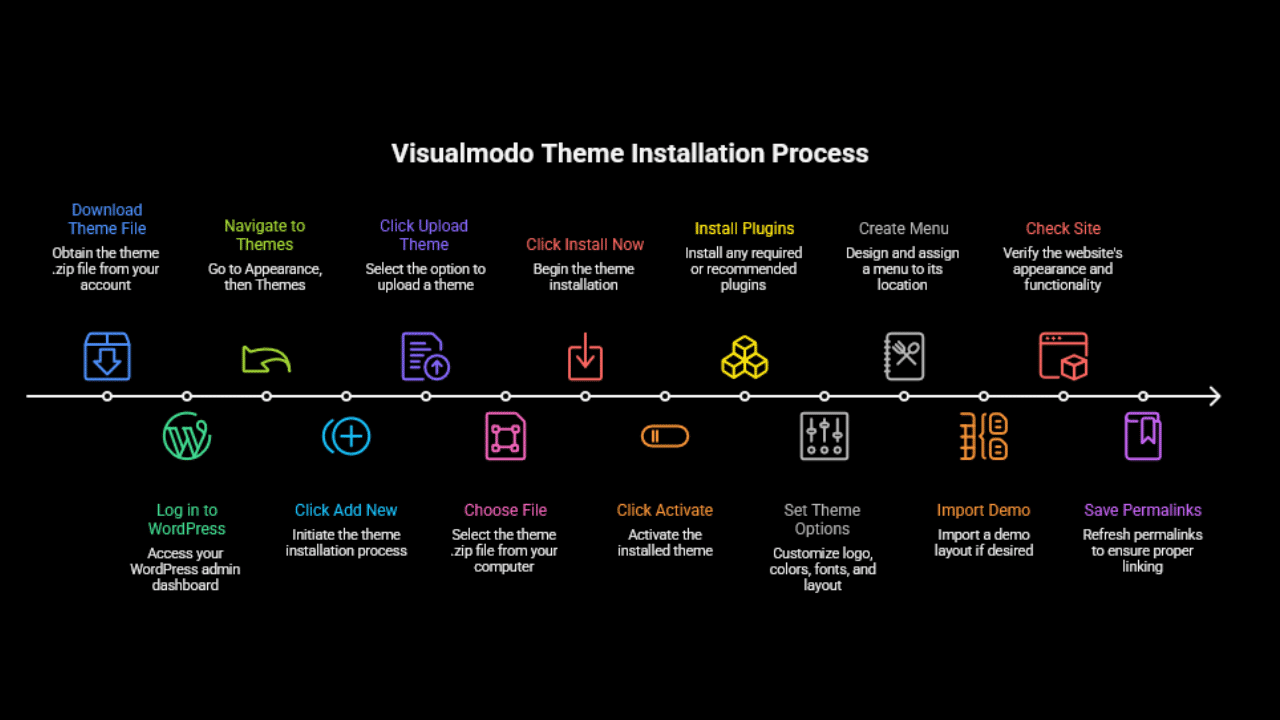
- Download the Visualmodo theme .zip file from your Visualmodo account or purchase email.
- Log in to your WordPress admin dashboard.
- Go to Appearance, then Themes.
- Click Add New.
- Click Upload Theme.
- Click Choose File, select the theme .zip, then click Install Now.
- When installation finishes, click Activate.
- If prompted to install required or recommended plugins, click the prompt, then install and activate them.
- Open the theme options panel or go to Appearance, Customize to set your logo, colors, fonts, and layout.
- Go to Appearance, Menus, create your menu, then assign it to the correct menu location.
- If you want the demo layout, open the Demo Import or One Click Demo Import tool, pick a demo, then run the import.
- Check your site on the front end to confirm pages, header, and styling look right.
- Go to Settings, Permalinks, then click Save Changes to refresh permalinks.