Your LinkedIn connection request message is often the first thing someone learns about you. Most people get it wrong in one of two ways: they send LinkedIn’s blank default invite, or they squeeze a sales pitch into the note. Both end up ignored.
The note itself is tiny. Free LinkedIn accounts get 200 characters and only a few personalized notes each month, while Premium members get 300 characters. That is enough room to show you are a real person with a real reason to connect, and nowhere near enough room to sell.
The short version: to write a LinkedIn connection request that gets accepted, mention one specific detail about the person, give one clear reason to connect, leave out any pitch, and stay under 200 characters so the note works on any account. Save notes for people who do not know you yet, and once they accept, send a short first message that gives before it asks.
This guide covers how to write a LinkedIn connection request step by step: the current limits, when a note is worth spending, how to add one on desktop and mobile, a three-part structure you can reuse, 15 short templates for common situations, and what to send after someone clicks Accept.
Table of Contents
- Why most LinkedIn connection requests get ignored
- LinkedIn connection request character limits and monthly note caps
- Should you send a LinkedIn connection request without a note?
- How to add a note to a LinkedIn connection request
- The three-part structure behind connection requests that get accepted
- What to personalize in a connection request
- 15 LinkedIn connection request templates you can adapt
- 1. When they posted something useful
- 2. When they started a new role
- 3. When you share a background or community
- 4. When their company hits a milestone
- 5. When you simply want to learn from them
- 6. After meeting at an event or webinar
- 7. When you want to work at their company
- 8. When you want to reach a recruiter
- 9. When you went to the same school
- 10. When you are reconnecting with a former colleague
- 11. When you are a freelancer reaching out to an agency
- 12. When they engaged with your content first
- 13. When you want to reach a potential client
- 14. When you are writing to a senior executive
- 15. When you have nothing in common yet
- LinkedIn connection message mistakes that kill acceptance rates
- What to send after your LinkedIn connection request is accepted
- How to personalize at scale without sounding like a robot
- A quick pre-send checklist
- Character Limits, Missing Note Buttons and Follow-Ups: Quick Answers
- The bottom line
Why most LinkedIn connection requests get ignored
Busy professionals filter invites fast. They are not rejecting you. They are filtering out risk, noise, and sales pressure.
Requests usually fail when they:
- Arrive with no context from someone the recipient has never heard of
- Pitch a product, demo, or “quick call” before any relationship exists
- Open with vague flattery (“Love your profile!”) with nothing specific behind it
- Talk only about the sender (“I help companies scale…”)
Acceptance goes up when the note answers one quiet question in the reader’s mind: why me, and why now?
LinkedIn connection request character limits and monthly note caps
Before you write a connection request message, know the size of the box. LinkedIn has tightened personalized invitations over the last few years, and a lot of advice online still assumes everyone gets 300 characters.
| Account type | Note length | Personalized notes | What it means for you |
|---|---|---|---|
| Free (Basic) | 200 characters | A small monthly allowance (three per month on LinkedIn’s Help Center at the time of writing) | Save notes for cold, high-value contacts |
| Premium | 300 characters | A note on every invitation | Weekly invitation limits still apply |
These numbers come from LinkedIn’s own help page on personalizing invitations to connect, and we last checked them in October 2026. LinkedIn changes them without much warning, so glance at the character counter in the invite box before you rely on a long note. The safe habit is to write every note to the free account’s 200-character limit. It works on any account, and shorter notes read better on a phone anyway.
There is also a weekly cap on how many invitations you can send in total. LinkedIn does not publish a fixed number, and a large pile of ignored or declined invites can get your invitation privileges restricted. That is one more reason to send fewer, better requests.
Should you send a LinkedIn connection request without a note?
Often, yes. On a free account a note is something you spend, so spend it where it changes the outcome.
- Skip the note for people who already know you: colleagues, clients, or someone you just met who said “let’s connect.” Your name and photo do the work.
- Add a note for cold contacts: hiring managers, recruiters, potential clients, speakers, and anyone who would otherwise wonder who you are.
- Add a note when the context is not obvious from your profile, such as a shared event, a mutual introduction, or a post of theirs you are responding to.
If the person matters and you have already used your notes for the month, consider a different channel. A short, specific email often lands better than a blank invite from a stranger, and our guide on how to find the email of a website owner walks through respectful ways to reach the right inbox.
How to add a note to a LinkedIn connection request
On desktop:
- Open the person’s full profile rather than inviting them from a list of suggestions.
- Click Connect. If you only see Follow, open the More menu on their profile and choose Connect from there.
- Choose Add a note when LinkedIn asks how you want to send the invitation.
- Paste or type your note and watch the character counter.
- Read it once more, then click Send.
On the mobile app, be careful with the Connect button. Tapping it can send the invitation immediately without a note, so look for the option to personalize the invite (usually under More on the person’s profile) before you tap anything. Invitations sent from the People You May Know list on mobile cannot carry a note at all.
The three-part structure behind connection requests that get accepted
Think of the note as a knock on the door, not a sales meeting. Its only job is to earn the Accept. The conversation comes after.
Almost every high-acceptance note follows the same three beats:
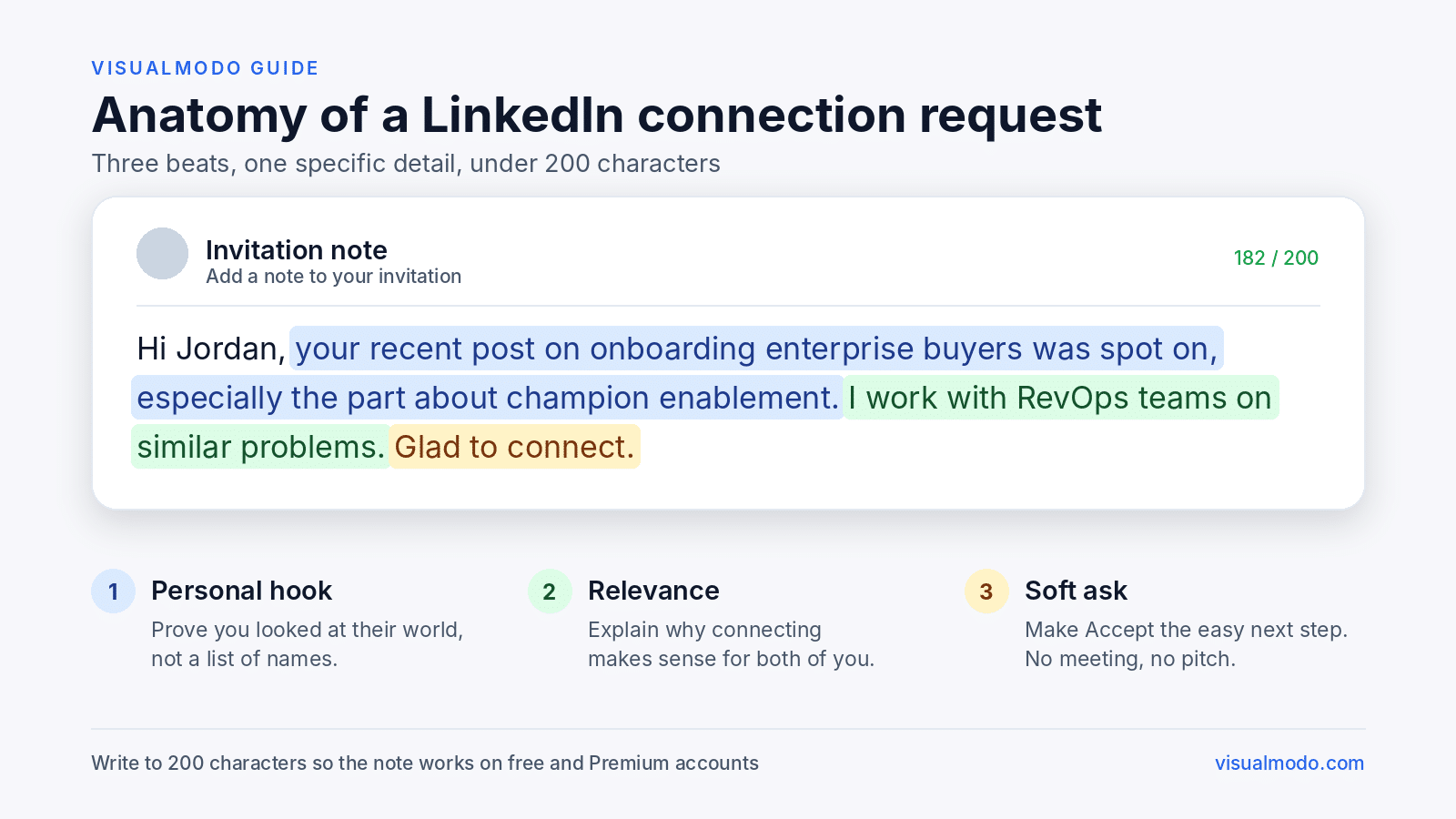
- Personal hook: prove you looked at their world, not a list
- Relevance: connect that detail to why connecting makes sense
- Soft ask: invite the connection without asking for their time
Here is what that looks like in under 190 characters:
Hi [First name], your recent post on onboarding enterprise buyers was spot on, especially the part about champion enablement. I work with RevOps teams on similar problems. Glad to connect.
Specific. Relevant. No pitch. Easy to accept. If you cannot say it in two or three short sentences, cut until you can.
What to personalize in a connection request
You do not need a summary of their career. One concrete detail is enough:
| Signal | Why it works |
|---|---|
| A recent post or comment | Shows you pay attention to their ideas |
| Current role or company context | Makes “why you” obvious |
| Mutual connection, school, or group | Transfers a bit of trust |
| Company trigger (funding, hire, launch, award) | Gives a timely reason to reach out |
| Shared niche or problem space | Positions you as a peer, not a stranger |
Pick one signal. Stacking three compliments into 200 characters usually makes the note feel forced, and it starts to read like a mail merge.
15 LinkedIn connection request templates you can adapt
Use these LinkedIn connection request message examples as starting points and swap in details that are actually true for the person you are messaging. We built each one around a single real-world trigger and measured it with a short first name and company filled in, so every template fits the 200-character limit on free accounts.
| # | Use it when | Approx. characters |
|---|---|---|
| 1 | They posted something useful | 170 |
| 2 | They started a new role | 160 |
| 3 | You share a background or community | 155 |
| 4 | Their company hit a milestone | 130 |
| 5 | You simply want to learn from them | 145 |
| 6 | You met at an event or webinar | 145 |
| 7 | You want to work at their company | 155 |
| 8 | You want to reach a recruiter | 150 |
| 9 | You went to the same school | 130 |
| 10 | You are reconnecting with a former colleague | 115 (or no note) |
| 11 | You are a freelancer reaching out to an agency | 160 |
| 12 | They engaged with your content first | 140 |
| 13 | You want to reach a potential client | 165 |
| 14 | You are writing to a senior executive | 155 |
| 15 | You have nothing in common yet | 155 |
1. When they posted something useful
Hi [First name], I caught your post on reducing churn in PLG products. The point about activation checkpoints clicked for me. Would love to connect and keep following your take.
2. When they started a new role
Hi [First name], congrats on stepping into the Head of Growth role at [Company]. I spend a lot of time around early-stage growth teams and would be glad to connect.
3. When you share a background or community
Hi [First name], looks like we both came up through the WordPress community and share a few mutual connections. Always happy to connect with people in that world.
4. When their company hits a milestone
Hi [First name], saw the news about [Company]’s Series B. Big milestone. I work with teams at that growth stage and would love to connect.
5. When you simply want to learn from them
Hi [First name], your posts on accessible checkout design have been useful reading while I rebuild our own store. Happy to connect if you’re open to it.
6. After meeting at an event or webinar
Hi [First name], great talking with you after the [Event] panel on [topic]. Your point about [detail] stuck with me. Let’s stay connected here.
Send this the same day, while the conversation is fresh. At in-person events it is even easier to connect on the spot: many professionals now share a QR code from a digital business card that opens their LinkedIn profile directly, which saves you from guessing between five people with the same name later that night.
7. When you want to work at their company
Hi [First name], I saw [Company] is hiring a [Role]. I’ve spent [X] years in [field] and like how your team approaches it. Would be glad to connect.
Naming the role tells a hiring manager exactly why you are there. Keep the referral or interview ask for a later message.
8. When you want to reach a recruiter
Hi [First name], I’m a [Role] exploring new roles in [industry] and noticed you recruit for teams like mine. Happy to connect and stay on your radar.
9. When you went to the same school
Hi [First name], fellow [School] grad here. I noticed you moved into [field], which is where I’m heading next. Would be great to connect.
10. When you are reconnecting with a former colleague
Hi [First name], we overlapped at [Company] back in [year]. Good to see what you’re building at [New company]. Let’s reconnect here.
If you worked closely together, you can usually skip the note entirely and save it for someone colder.
11. When you are a freelancer reaching out to an agency
Hi [First name], I’m a WordPress designer and really liked the site [Agency] shipped for [Client]. Always glad to connect with agency people who care about craft.
12. When they engaged with your content first
Hi [First name], thanks for the thoughtful comment on my post about [topic]. Would be good to connect so I don’t miss your take next time.
13. When you want to reach a potential client
Hi [First name], congrats on opening [Company]’s second location. I design websites for local [industry] businesses and enjoy watching teams like yours grow. Happy to connect.
Mention the trigger, not your list of services. If they accept, the conversation about their website can start later, on their terms.
14. When you are writing to a senior executive
Hi [First name], your talk on [topic] at [Event] changed how our team plans [area]. No ask here, just glad to connect and keep learning from your posts.
Executives get more invites than almost anyone, so lead with their idea and keep the note shorter than you think it needs to be.
15. When you have nothing in common yet
Hi [First name], I’m building my network in [field] and your work on [project] stood out. I’d be glad to connect and learn from what you share here.
Use this one for someone you don’t know at all. It works best when you have already liked or commented on a few of their posts, so your name looks familiar when the invite arrives.
Notice that none of these ask for a meeting. That restraint is the point.
LinkedIn connection message mistakes that kill acceptance rates
- Selling in the invite. “We help companies like yours book more demos. Open to a quick chat?” belongs later, if ever.
- Fake familiarity. “Fellow innovator!” with no real tie reads as automated spam.
- Putting a link in the note. A link from a stranger looks like spam or phishing and gives the reader one more reason to click Ignore.
- Writing to the limit. If they have to expand the preview to read it, you have already lost them.
- Making it about your metrics. “I 10x pipelines for B2B teams” is a billboard, not a connection note.
- Identical blasts. Sending the same line to 200 people shows recipients you are not selective, and every ignored invite counts against you.
- Pitching the moment they accept. An accepted request is permission to start a conversation, not to drop a sales deck into their inbox five minutes later.
What to send after your LinkedIn connection request is accepted
This is where most outreach falls apart. People who wrote a careful note often follow it with a pitch the moment the request goes through, which undoes the trust they just earned.
A better first message continues the thread from your note, gives something before it asks, and ends with a question that is easy to answer. Messages to existing connections are not squeezed into 200 characters, but short still wins.
Thanks for connecting, [First name]. That activation checkpoint idea from your post got me thinking. How do you decide which checkpoint to measure first when a product has several onboarding paths?
Thanks for accepting, [First name]. Since you’re hiring for [Role], here is a short case study from a similar project I worked on. Happy to answer anything about it, no pressure.
If the connection is part of a wider prospecting plan, map the next few touches before you send the first one. Our guide to modern LinkedIn outreach strategies for B2B growth covers follow-up cadence, content, and the metrics worth tracking.
How to personalize at scale without sounding like a robot
Handwriting every note is ideal for a short VIP list. It gets harder once you are reaching out to dozens of people a week, and LinkedIn’s weekly invitation cap keeps the real ceiling lower than many sales playbooks suggest.
The practical approach:
- Segment tightly (same role, same industry, same trigger)
- Write a strong base note for that segment
- Add one personalized line per person from their profile or recent activity
- Keep the ask soft and consistent
- Read every note before it goes out
Some people write those personal lines by hand, while others personalise them with AI, drafting from the prospect’s headline, role, or recent posts. That walkthrough comes from an outreach tool company. We link to it for the workflow, not as a product endorsement, and we have no commercial relationship with them.
Whichever route you take, treat AI output as a first draft and check each detail against the real profile, because a note that mentions a post they never wrote is worse than no note at all. Keep the sending itself in human hands, too: LinkedIn’s User Agreement prohibits bots and other unauthorized automated methods for adding contacts or sending messages.
The principle stays the same either way: the personalized part should feel like something only that person could receive.
A quick pre-send checklist
Before you hit Send:
- Would you accept this if it landed in your own invitations?
- Is there one specific detail that could only apply to them?
- Did you remove every product pitch, link, and meeting ask?
- Is it under 200 characters, with room to breathe?
- Does the last line make Accept the easy next step?
If any answer is no, revise once more.
Character Limits, Missing Note Buttons and Follow-Ups: Quick Answers
Free LinkedIn accounts can write up to 200 characters in a connection note, and Premium members get up to 300. Because the limit depends on your account and LinkedIn adjusts it from time to time, writing every note to 200 characters is the safest habit.
Free accounts get a small monthly allowance of personalized notes. LinkedIn’s Help Center lists three per month at the time of writing, while Premium members can add a note to every invitation. Weekly limits on total invitations still apply to both.
Yes, when the person already knows you, such as a colleague, a client, or someone you met in person who expects your invite. Save your notes for cold contacts and anyone who would otherwise wonder who you are and why you are reaching out.
The most common reasons are that you have used your monthly note allowance on a free account, you tapped Connect on the mobile app (which can send the invite right away), or you invited someone from People You May Know, where notes are not available. Open the person’s full profile, look for the personalize option before connecting, update the app, and make sure your account has a confirmed primary email address.
Leave it or withdraw it, but do not send another request right away. LinkedIn can block you from inviting the same person again for up to three weeks after a withdrawal, so use that time to engage with their posts before trying again.
Briefly, yes. Naming the role tells a hiring manager or recruiter exactly why you are there. Keep the referral or interview request out of the note and save it for a follow-up message once they accept.
AI is useful for drafting a personalized line from someone’s headline, role, or recent posts, but review every note before it goes out. Check that each detail is true, keep the tone human, and send invitations yourself rather than through bots, which LinkedIn’s User Agreement prohibits.
The bottom line
Connection requests that get accepted are rarely clever. They are clear, specific, and respectful of someone else’s attention.
Lead with them. Bridge with relevance. Ask lightly. Then follow up with something useful instead of a pitch. Do that consistently and your acceptance rate, and the quality of the conversations that follow, will rise without you needing to shout louder in the feed.