TL;DR: Client’s WordPress site hacked? The first hour decides how far the damage spreads and whether you keep the account. Confirm the hack, message the client, back up the infected site as evidence, lock every login (application passwords included), find the way in and every backdoor, then start the cleanup. Send a written incident report within two days.
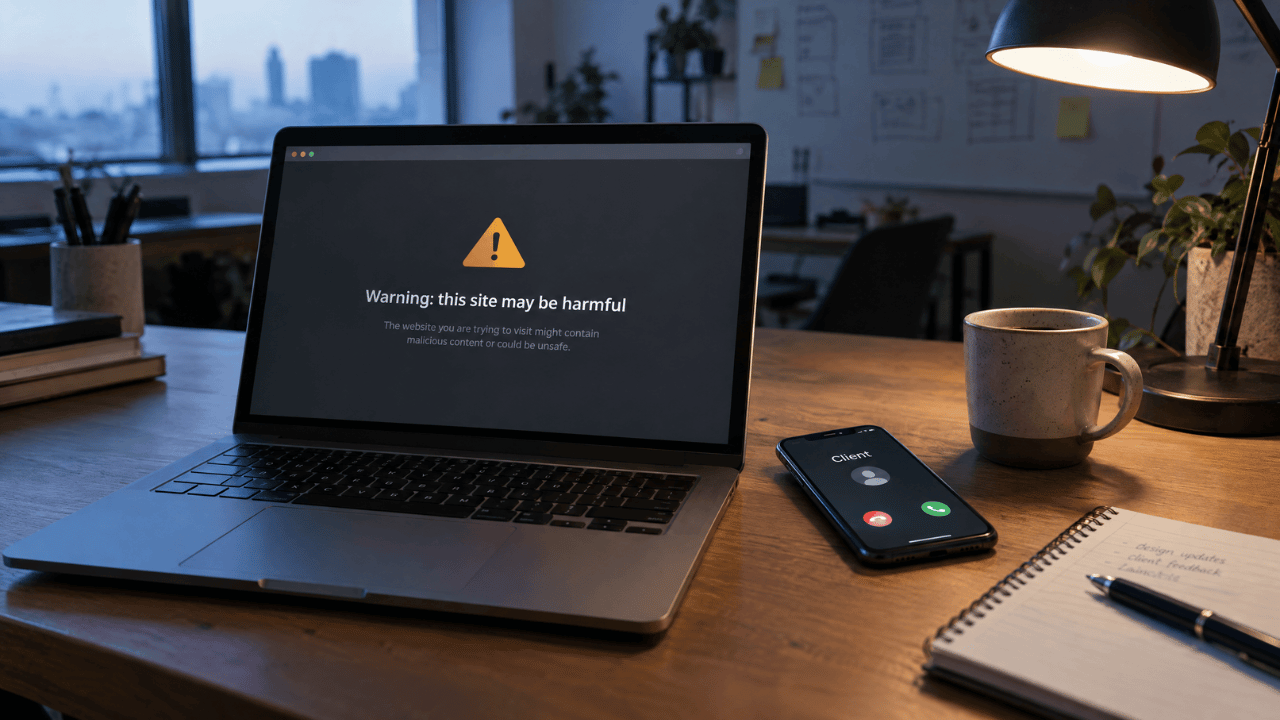
It’s 7:40 a.m. and your phone is already buzzing. A client says customers are seeing a security warning when they search for the business, and the homepage now redirects to a site selling knockoff sneakers. They want to know how bad it is, and they want an answer now.
You don’t have that answer yet. What you do have is the next hour, and it decides two things: how far the damage spreads, and whether this client still trusts you next month. When a WordPress site is hacked, the order you work in matters as much as the fixes. Clean too early and you destroy the evidence. Reset passwords without hunting for backdoors and the attacker walks back in by lunch. Go quiet and the client fills the silence with the worst version of the story.
This guide is the minute-by-minute version of that hour for agencies that manage client sites: how to confirm a hacked WordPress site without being fooled by the malware, the lockdown steps that actually close the door, where backdoors hide, the commands that speed up the investigation, and the message and report that keep the client.
Table of contents
- 1. Confirm the WordPress hack, then tell the client first (minutes 0-10)
- 2. Lock the site down and save the evidence (minutes 10-25)
- 3. Find how the hacker got in, and every backdoor they left (minutes 25-40)
- 4. Clean the files and database, then verify (minutes 40-60 and beyond)
- 5. Write the follow-up report that keeps the client (within 24-48 hours)
- Plan the hour before you need it: the agency incident kit
- The first-hour checklist to copy into your runbook
- Answers on hack warnings, backdoors, rankings, restores and Google reviews
Here’s how that hour breaks down, followed by the report that keeps the account.
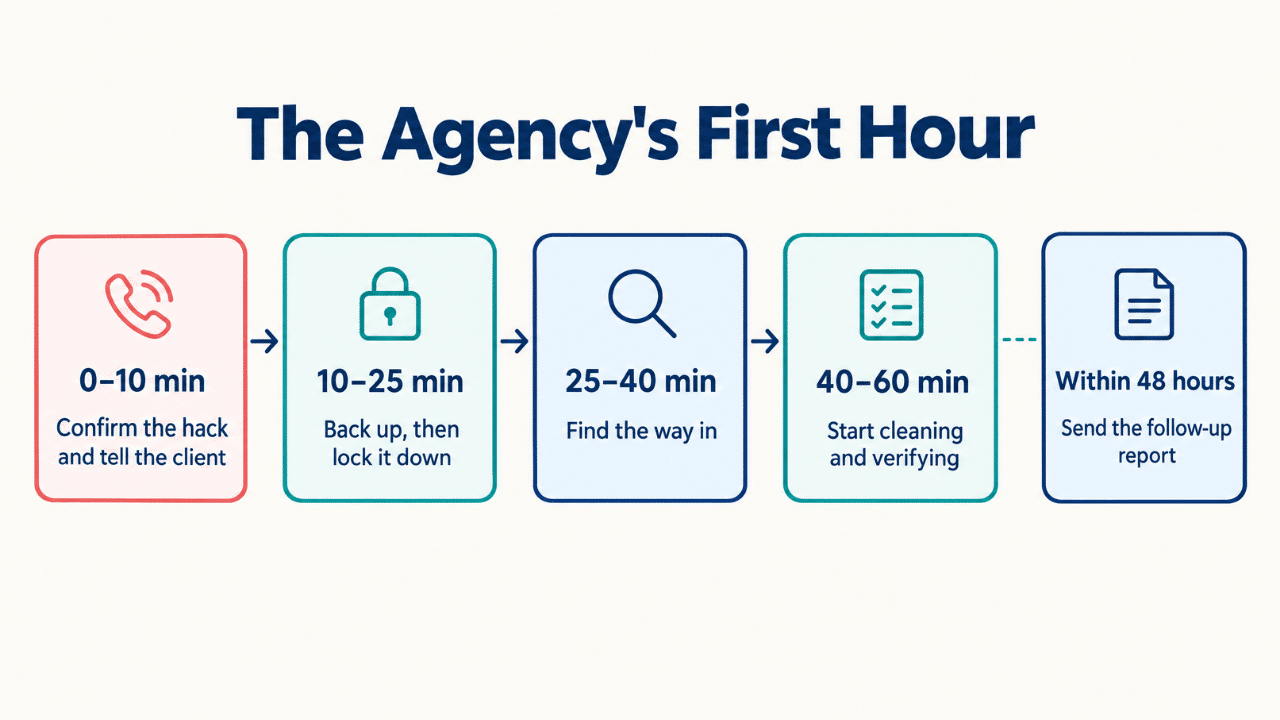
| Minutes | Focus | Done when |
|---|---|---|
| 0-10 | Confirm the hack and tell the client | The client has heard it from you first |
| 10-25 | Back up the hacked site, then lock it down | Every password, session and application password is reset or revoked |
| 25-40 | Find the way in and the backdoors | You have a likely cause and a list of suspects |
| 40-60 | Start cleaning and verifying | The client knows the plan, the scope and the next update time |
| Within 48 hours | Send the follow-up report | The client has it in writing |
1. Confirm the WordPress hack, then tell the client first (minutes 0-10)
Spend the first ten minutes confirming what’s wrong, then contact the client before a customer or Google beats you to it. Clients forgive a hack faster than they forgive silence.
Start with what a visitor sees, but don’t trust your own browser. Most WordPress redirect malware skips logged-in users, and many variants fire only on mobile or only for visitors arriving from Google search. Run a few affected URLs through the URL Inspection tool in Google Search Console to see the page the way Googlebot does. Google itself advises against opening infected pages directly in your browser, since some payloads target the visitor’s device. If you need a browser view, use a phone on mobile data that has never logged in to the site, not your work laptop.
Then open the Security issues report in Google Search Console. If Google has flagged hacked content, malware or social engineering, it shows up there with sample URLs. A quick site:clientdomain.com search also exposes injected spam pages, such as the Japanese keyword hack or the pharma hack, that never appear in the site’s own menus.
Write down what you see, when you saw it, and your time zone. WordPress.org’s hacked-site guidance calls documentation the first actionable step after a compromise, and those notes become the backbone of your incident report later.
What each symptom usually points to
A symptom won’t tell you how the attacker got in, but it tells you where to look first.
| Symptom | Usually means | Check first |
|---|---|---|
| “This site may be hacked” under search results, or spam titles in Google | SEO spam injection (Japanese keyword or pharma hack) | Security issues report, site: search, sitemaps, posts and options tables |
| Redirects that hit only mobile, logged-out or Google visitors | Conditional redirect code | .htaccess, index.php, theme functions.php, mu-plugins, scripts injected in the database |
| Full-page red warning in Chrome | Malware or phishing flagged by Google Safe Browsing | Sample URLs in the Security issues report, uploads folder, unknown downloads |
| Admin users nobody recognizes | Stolen credentials or a privilege escalation flaw | Users list, recently installed plugins, login logs |
| Host suspension or a flood of outgoing email | Spam relay or malware on the hosting account | Mail queue, cron jobs, other sites on the same account |
| Files that change back after you clean them | A backdoor, or malware still running on the server | Cron events, mu-plugins, running PHP processes (ask the host) |
The first message to the client
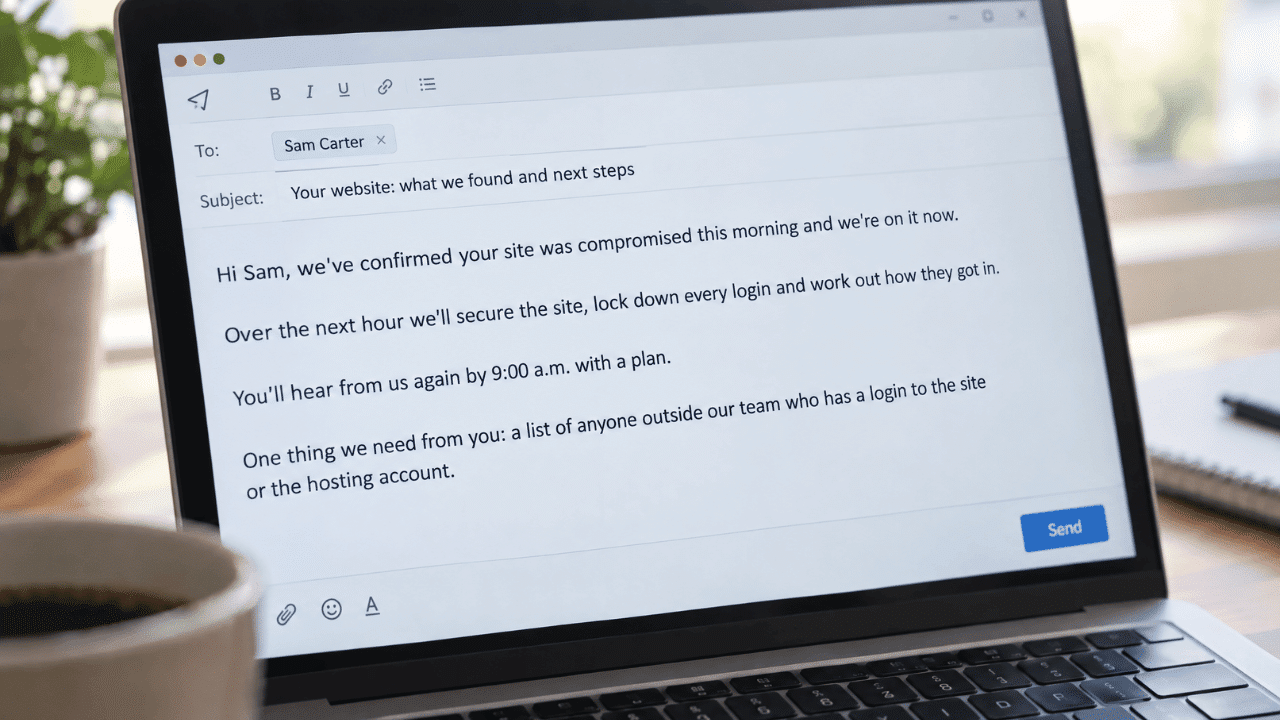
Keep it short and factual, with no blame and no guesses about the cause. Something like this works:
Hi Sam, we’ve confirmed your site was compromised this morning and we’re on it now. Over the next hour we’ll secure the site, lock down every login and work out how they got in. You’ll hear from us again by 9:00 a.m. with a plan. Two things we need from you: a list of anyone outside our team who has a login to the site or the hosting account, and please don’t log in or change anything on the site until we’ve secured it.
Leave out anything you can’t stand behind yet. “No customer data was affected” is a promise you can’t make at minute ten. If the site takes payments, stores customer accounts or collects form submissions, ask who on the client’s side should be kept in the loop, because that answer matters before the hour is out.
2. Lock the site down and save the evidence (minutes 10-25)
Contain the damage in this order: back up the hacked site as it is, then close every way back in. Cleaning first destroys the clues you’ll need later.
Take a full backup of the files and database before you change anything. WordPress.org recommends keeping a snapshot of the infected site for later forensics, and the FTC’s breach response guide tells businesses not to destroy forensic evidence while they fix the problem. Download the server access and error logs at the same time, because some hosts rotate them after a few days and they’re your best record of how the attacker got in. That backup and those logs are how you’ll answer “how did this happen?” when the client asks next week.
Then lock it down:
- Take the site offline if it’s sending visitors to harmful pages. Otherwise, put it in maintenance mode.
- Force a password reset for every WordPress user, starting with administrators.
- Generate new secret keys in wp-config.php, or run
wp config shuffle-saltsif you have WP-CLI. WordPress.org notes this logs out anyone still signed in. - Revoke every application password under each user’s profile (Users, then Profile, then Application Passwords).
- Change the hosting, SFTP and database passwords, and rotate API keys stored on the site, such as SMTP, payment gateway and CDN keys.
Contact the host next and ask whether other sites on the same account show signs of trouble. On shared hosting, a hack can spread to neighboring sites, and the host can see things you can’t, such as processes running on the server.
What a password reset does not revoke
A new password stops anyone from logging in with the old one. It doesn’t remove access the attacker set up separately. Application passwords, which let tools talk to the REST API and XML-RPC, keep working after an account’s main password changes, so each one has to be revoked by hand. The same goes for admin accounts the attacker created, plugins that manage their own logins, and SSH keys added to the hosting account. Treat the reset as one step in the lockdown, not the whole lockdown.
This is also the moment an agency finds out how it really stores client credentials. If one vault entry, shared inbox or reused password unlocks several client sites, rotate those too, and use the incident to tighten your password management practices across every account you manage.
Watch Out: Label the evidence backup clearly as infected and store it away from the live server. An easy way to get hacked twice is a teammate restoring the wrong copy.
3. Find how the hacker got in, and every backdoor they left (minutes 25-40)
Start where break-ins usually begin: outdated plugins and themes, reused passwords and admin accounts nobody remembers creating. If you clean the site without finding the cause, the same hole stays open.
Check plugins first. Patchstack’s 2026 security report found that 91% of the WordPress vulnerabilities disclosed in 2025 were in plugins, 9% were in themes, and only 6 were in WordPress core. The same report puts the median time to mass exploitation for heavily exploited flaws at 5 hours, says 46% of vulnerabilities had no fix in time for public disclosure, and found three times as many known exploited vulnerabilities in premium components as in free ones. Put any plugin that’s a few days behind on updates on your suspect list, and give extra scrutiny to premium plugins installed from a zip file.
Work through this list before you commit to a theory:
- Plugins and themes with pending updates, or ones the developer no longer maintains
- Admin users nobody recognizes, including old accounts for former staff and contractors
- Login and access logs from the backup you just took
- Files changed recently, especially in folders that rarely change
Where WordPress backdoors usually hide
Attackers rarely rely on one way in. Once inside, they plant spare keys, and modern WordPress malware is built to stay out of sight. The same Patchstack report describes campaigns that show spam to search engines and redirects to human visitors while serving clean pages to site owners and scanners, plus a malware family that runs in server memory and rewrites index.php and .htaccess the moment they’re restored. Check these spots before you call anything clean:
- The mu-plugins folder. Must-use plugins in wp-content/mu-plugins load on every request and can’t be deactivated from the dashboard, which makes them a favorite hiding place.
- Plugins with plausible names. A folder that looks like a cache or SEO helper but that nobody on the team installed deserves a hard look.
- PHP files in uploads. On most sites, wp-content/uploads should hold media, not code.
- Scheduled tasks. WordPress cron events and server cron jobs can download the malware again after you clean up.
- The database. Injected scripts often sit in autoloaded options, widget content or post content rather than in files.
- Server config files. .htaccess files in subfolders, .user.ini and php.ini can quietly load a malicious file before WordPress runs.
A ten-minute WP-CLI audit
If the host gives you SSH access, WP-CLI turns the first pass of the investigation into a handful of commands:
wp core verify-checksums
wp plugin verify-checksums --all
wp user list --role=administrator --fields=ID,user_login,user_email,user_registered
wp user application-password list <user-id>
wp cron event list
wp option get siteurl
wp option get home
find wp-content/uploads -name "*.php"
find . -name "*.php" -mtime -7
The checksum commands compare core and plugin files with the official copies on WordPress.org and flag anything modified or added. They only cover plugins hosted on WordPress.org, so premium plugins need a fresh download from the vendor. Treat the results as leads, not verdicts: a modified file is a suspect, and a clean file report says nothing about the database.
Agency blind spots
Agencies have their own weak spots. The freelancer who helped with a redesign two years ago may still have an admin login. A shared agency password used across several client sites turns one leak into many. And a site management dashboard connected to every client install is a single key to all of them, so check that account’s login history too.
Then look at your own team’s machines. WordPress.org’s hacked-site guidance points out that many infections start on the computer used to manage the site, where a trojan quietly captures SFTP and admin logins. If anyone on the team has noticed the signs of malware on their computer, scan that machine before they log in to anything else.
Pro Tip: Don’t stop at the first suspect. Attackers often leave a second way back in, so finish the list before you start cleaning.
4. Clean the files and database, then verify (minutes 40-60 and beyond)
Replace what you can with trusted copies, clean what you can’t, and check the result before you bring the site back online. This work starts inside the hour on a simple site and runs longer on a messy one, which is fine as long as the client knows.
Restore a backup or clean in place?
A clean backup is the fastest way back, but only if it really is clean. Malware often lands days or weeks before anyone notices a symptom, so the latest backup may already contain it. Use the file dates and log entries from step 3 to estimate when the compromise started, restore from a point before that, and patch the entry point anyway, because restoring an old copy also restores the old vulnerable plugin. If no backup predates the infection, clean in place.
To clean in place, replace the /wp-admin and /wp-includes folders over SFTP with fresh copies of the same WordPress version the site runs. WordPress.org’s hacked-site FAQ explains why: reinstalling from the dashboard may not overwrite files an attacker added. Reinstall plugins and themes from their official sources rather than trusting the copies on the server.
Next, check the files WordPress.org lists as common targets: .htaccess, index.php, header.php, footer.php and functions.php. Look at wp-config.php too, and search the uploads folder for PHP files. In the database, look for admin users you didn’t create, plus spam links or scripts injected into posts, widgets and settings.
Once the site is clean, change every password again. WordPress.org recommends a second reset after cleanup, on top of the first one. Regenerate the secret keys again, update WordPress, plugins and themes, and delete anything the site no longer uses. Then verify before you bring the site back online: rerun the checksum checks, fetch key pages as Googlebot and as a mobile visitor, and inspect the sitemap for URLs you didn’t publish. If cleaned files change again within minutes, stop and ask the host to look for malicious processes still running on the server.
By minute 60 the job may not be finished, but the client should know the plan, the next update time, and whether this work is covered by their care plan or billed separately. Settling scope now is far easier than explaining a surprise invoice after the crisis.
Customer data in play? Flag the notification clock now
If the hacked site runs WooCommerce, stores customer accounts or collects form submissions, tell the client by minute 60 that personal data may be involved. Deciding whether to notify anyone is the client’s call, ideally with legal advice, but some deadlines start when the business becomes aware of a breach. Under Article 33 of the GDPR, a controller generally has 72 hours to notify the supervisory authority when a breach is likely to put people at risk. Brazil’s ANPD sets three business days for reportable incidents, doubled for qualifying small businesses. US state breach laws vary. If the checkout page was touched, card skimming is a real possibility, and the client should alert their payment processor.
Your job is to hand the client facts they can act on: what data the site held, which systems were affected, and when the compromise likely began. The evidence backup and your notes are what make those answers possible.
5. Write the follow-up report that keeps the client (within 24-48 hours)
A short, plain incident report turns a bad week into proof the client hired the right agency. Send it within two days, while the details are still fresh.
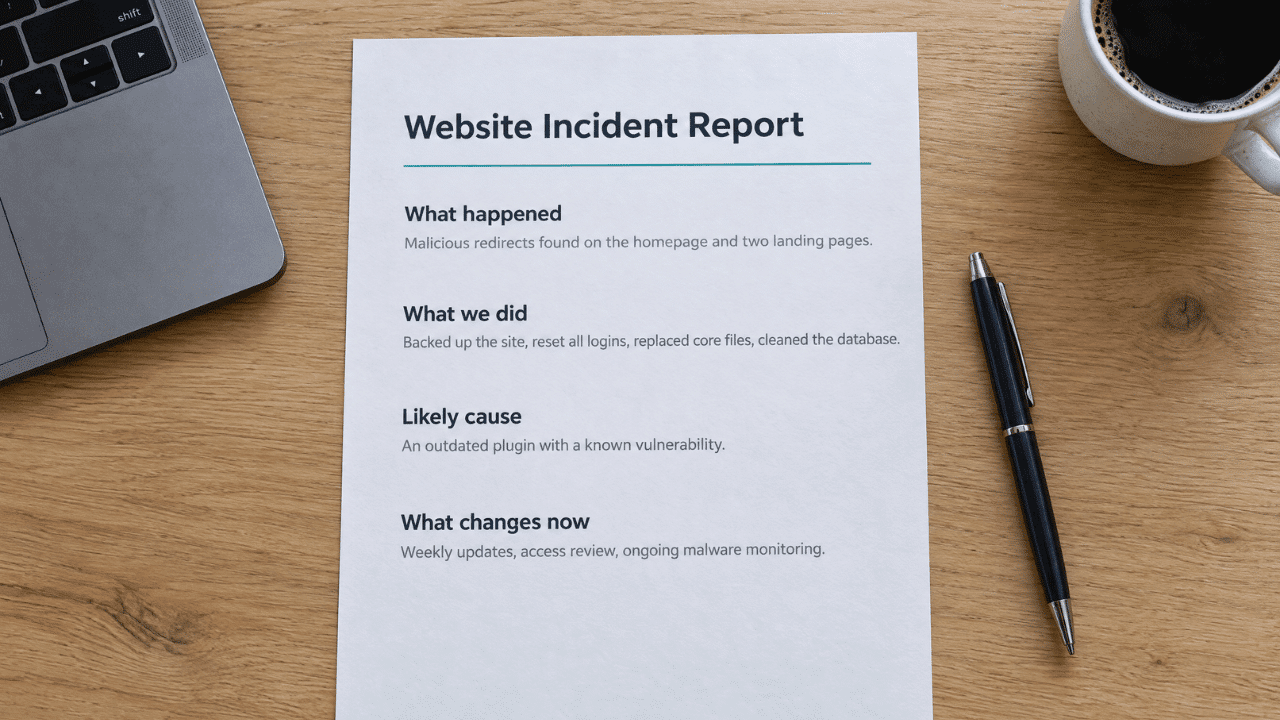
Keep it to four parts:
- What happened: what you found, and when.
- What we did: each step, with times and time zone from your notes.
- What we think caused it: the likely way in, stated with honest confidence.
- What changes now: updates, access clean-up, backups and ongoing monitoring.
If Google flagged the site, click Request Review in the Security issues report once every issue is fixed on every page. Tell the client up front that Google says reviews can take several days or weeks, so the warning won’t vanish overnight, and don’t resubmit while a review is pending. Warnings and blacklisting can also cost rankings while they’re live, and this breakdown of how cybersecurity affects SEO explains why the damage goes beyond the warning itself.
For the “what changes now” section, recommend monitoring that doesn’t depend on the server that was just compromised. The incident kit below covers what to look for.
Quick Win: Save your first client message and this report outline as agency templates today. Next time, those minutes go to the site itself.
Plan the hour before you need it: the agency incident kit
Clients remember how you handled the morning their site went down, long after the warning clears. Speed in that first hour comes from preparation, not heroics. NIST’s incident response guidance (SP 800-61 Rev. 3) makes the same point at enterprise scale, treating incident response as part of everyday risk management so that incidents happen less often and do less damage when they do. For a WordPress agency, that preparation fits on one page:
- An access register for every client. Who has logins to WordPress, hosting, DNS, the domain registrar and the CDN, and who to call at each. For Web3 clients, add the RPC provider dashboards, the IPFS pinning account and the wallet that controls the project’s ENS name, the extra layers covered in our guide to hosting a dApp securely.
- Backups that predate a slow infection. Offsite copies with at least 30 days of history and a restore you’ve actually tested. If a client still relies on the host alone, these reasons to back up a website make an easy case for an offsite plan.
- Two-factor authentication everywhere it matters. Every admin and hosting account, with contractor access removed the day a project ends.
- An update policy that matches the threat. When heavily exploited flaws are attacked within hours of disclosure, a weekly update round leaves a gap. Vulnerability alerts or virtual patching close part of it.
- Templates ready to send. The first client message, the report outline and the host’s emergency support contact.
- Incident response in the contract. Whether cleanup is included in the care plan, what it costs if it isn’t, and how fast you respond.
Choose monitoring that doesn’t live on the server it watches
A security plugin running on a compromised site reports from inside the problem, and malware with server access can tamper with it. For ongoing WordPress security monitoring, look for a tool that runs its analysis off the server, checks file changes against known-good versions, alerts you before the client calls, and produces reports a non-technical client can read.
Editor’s note: Visualmodo received no payment for this article or for the link below. The guide was contributed by DeShea Witcher, who handles partnerships at Guardian Gaze, so we name that affiliation here. The tool is included as one example of off-server scanning, and any tool that meets the criteria above can do the same job.
One example is Guardian Gaze, an AI-powered WordPress malware scanner and website security monitoring platform that looks for malicious code, suspicious file changes, compromised plugins and themes, and other indicators of compromise. Its analysis runs outside the site, so a compromised site doesn’t control its own scanner, and the Agency plan adds client-friendly security reports.
Write down your first-hour plan now, so the next 7:40 a.m. call starts with a checklist you already trust.
The first-hour checklist to copy into your runbook
Here is the whole response on one screen. Copy it into your agency’s runbook or project tool and adjust the names and contacts for each client.
Minutes 0-10: confirm and inform
- Confirm the symptom with URL Inspection in Search Console or a device that has never logged in.
- Check the Security issues report and run a
site:search for injected pages. - Note what you saw, the time and your time zone.
- Send the client the first message, including the time of the next update.
Minutes 10-25: preserve and lock down
- Back up files, database and server logs, and label the copy as infected.
- Take the site offline or put it in maintenance mode.
- Reset every WordPress password, regenerate the secret keys and revoke application passwords.
- Change hosting, SFTP and database passwords, rotate stored API keys and alert the host.
Minutes 25-40: find the way in
- Check outdated plugins and themes, unknown admins, logs and recently changed files.
- Search mu-plugins, uploads, cron events, the database and config files for backdoors.
- Check team computers and any management dashboard connected to the site.
Minutes 40-60: clean, verify and set expectations
- Restore a backup from before the infection, or replace core, plugins and themes from official sources.
- Reset passwords and secret keys again, update everything and verify before going live.
- Tell the client the plan, the scope and whether customer data may be involved.
Within 48 hours: report and recover
- Send the four-part incident report.
- Request a review in the Security issues report if Google flagged the site.
- Agree the monitoring, backup and access changes that prevent a repeat.
Answers on hack warnings, backdoors, rankings, restores and Google reviews
Common signs include redirects to other sites, pages or ads you didn’t add, admin users nobody created, a sudden spike in outgoing email, and warnings from Google or your host. Check the Security issues report in Google Search Console, and test the site from a device that has never logged in, because most redirect malware hides from logged-in users.
Most WordPress redirect malware is conditional. It skips logged-in users, and it often fires only on mobile devices or for visitors arriving from Google search. Use the URL Inspection tool in Search Console, or a phone on mobile data that has never logged in, to see what real visitors see.
Yes, while the hack is live. Warnings in search results and in the browser cut clicks, injected spam pages can get indexed under your domain, and Google tries to keep hacked content out of its results. Clean every page, make sure removed spam URLs return a 404 or 410 status, request a review in the Security issues report and resubmit your sitemap so Google recrawls the clean version.
Restore only if the backup predates the infection, which can be days or weeks before the first symptom. Even then, update or remove the plugin or account the attacker used, or the site will be reinfected through the same hole. If no backup is old enough, clean in place and verify with checksum checks.
Not on its own. Application passwords keep working after a user’s main password changes, attacker-created admin accounts stay active, and backdoor files don’t need a login at all. Revoke application passwords, delete unknown users, regenerate the secret keys in wp-config.php and remove backdoors, then change passwords again after cleanup.
After you fix every issue and request a review in the Security issues report, Google says reviews can take several days or weeks. Don’t resubmit early. Google warns that a premature resubmission can slow down the next review.
The usual causes are vulnerable plugins or themes and weak or reused passwords. Patchstack found that 91% of the WordPress vulnerabilities disclosed in 2025 were in plugins, and that heavily exploited flaws were attacked at scale within a median of 5 hours, which is why outdated plugins are the first place to look.
About the contributor
DeShea Witcher handles partnerships at Guardian Gaze, a WordPress malware scanning and website security monitoring platform. He writes about how agencies and site owners recover from WordPress compromises. guardiangaze.com/wp